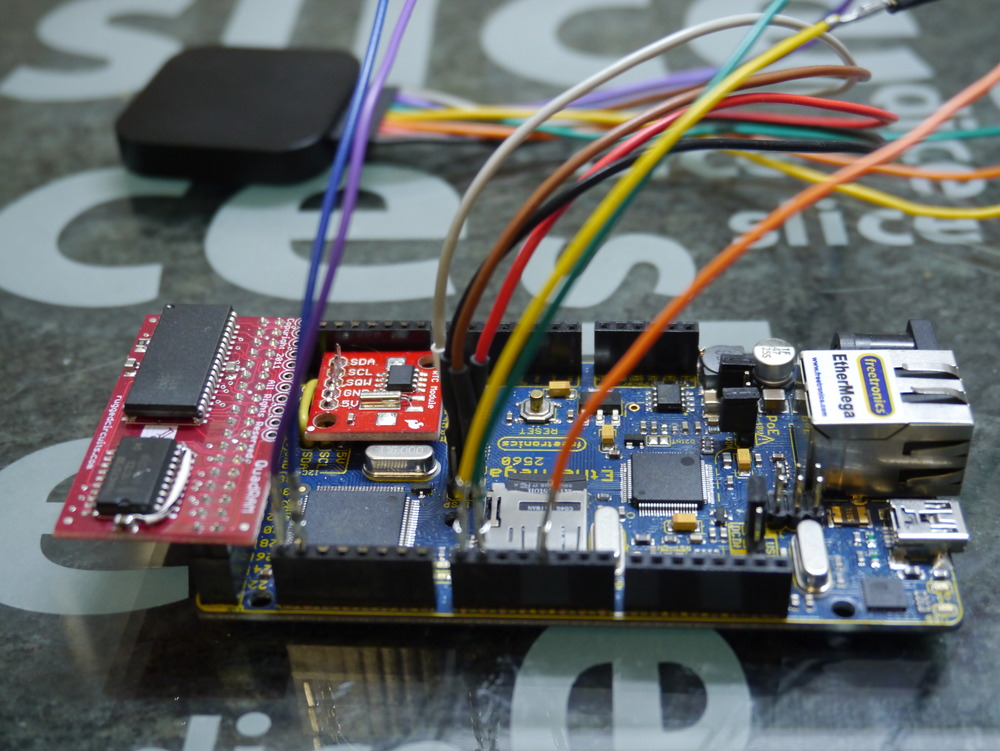
QuadRAM (512kByte) on Freetronics EtherMega (Arduino) ATmega2560 with freeRTOS

I’ve been spending some time integrating the Rugged Circuits QuadRAM extension for the Arduino Mega (or Freetronics EtherMega) into the freeRTOS environment. And, it is now my standard environment. Actually, the MegaRAM, a slightly cheaper 128kByte version is my standard, as I’ve not found an application yet that needs more than 64kBytes total RAM. But, that will happen.

QuadRAM is available from Rugged Circuits again, after a long intermission.

Without adding any complexity into the environment, I can address up to 56kBytes of heap variables, effectively leaving the entire 8kbyte of internal RAM for the stack. With no complexity or overhead.

In addition, with some simple commands within a task can implement bank switching to access up to 7 additional banks of RAM, each up to 56kBytes.

A further degree of integration into freeRTOS is to completely automate memory bank switching, to give each of either 7 or 15 tasks a bank of RAM for its exclusive use. But this is a goal for the next few months.

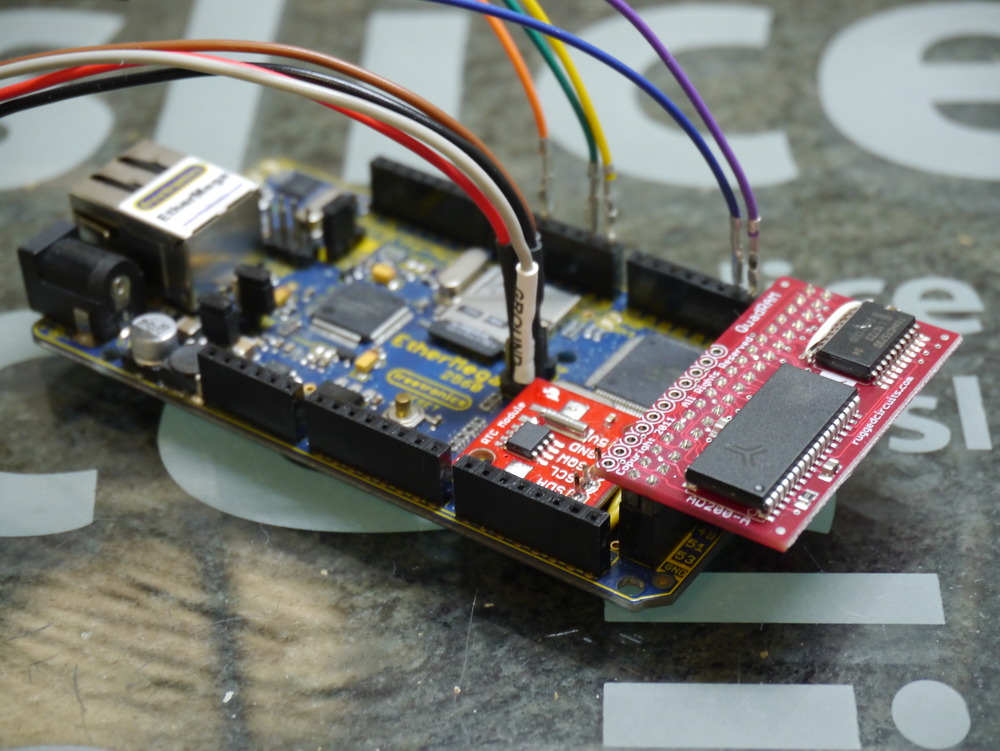
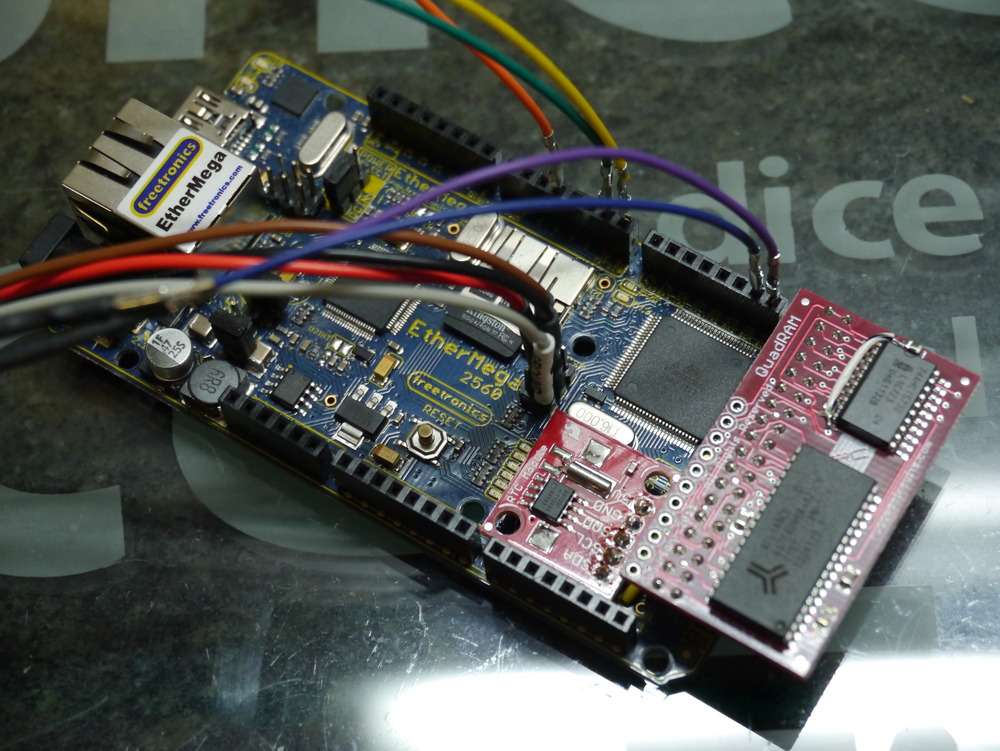
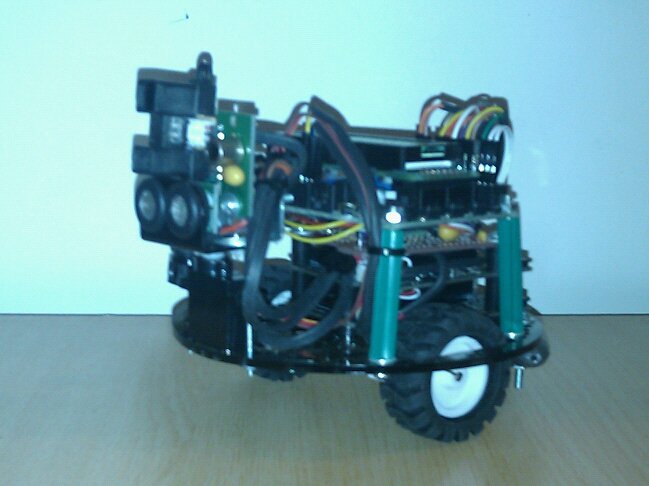
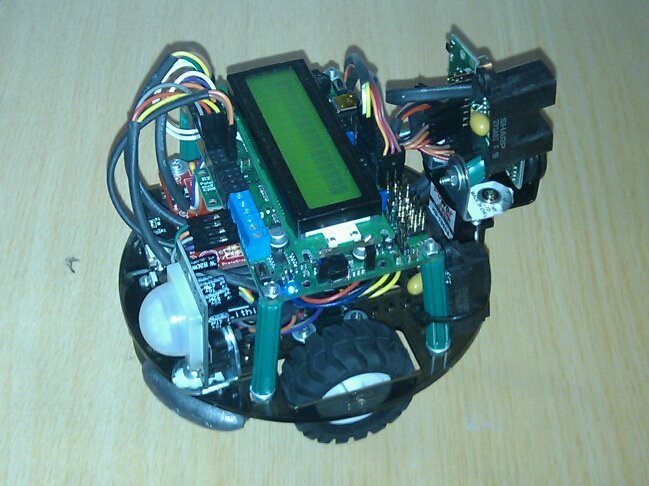
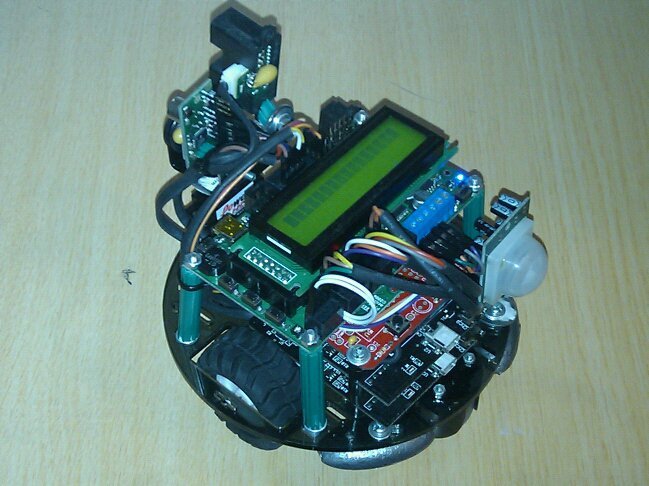
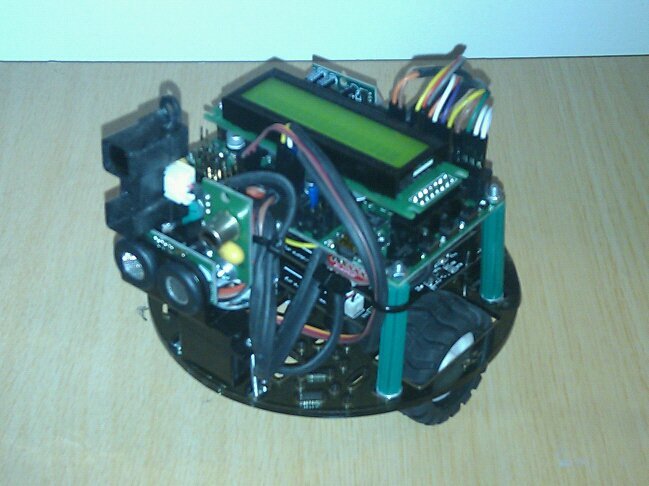
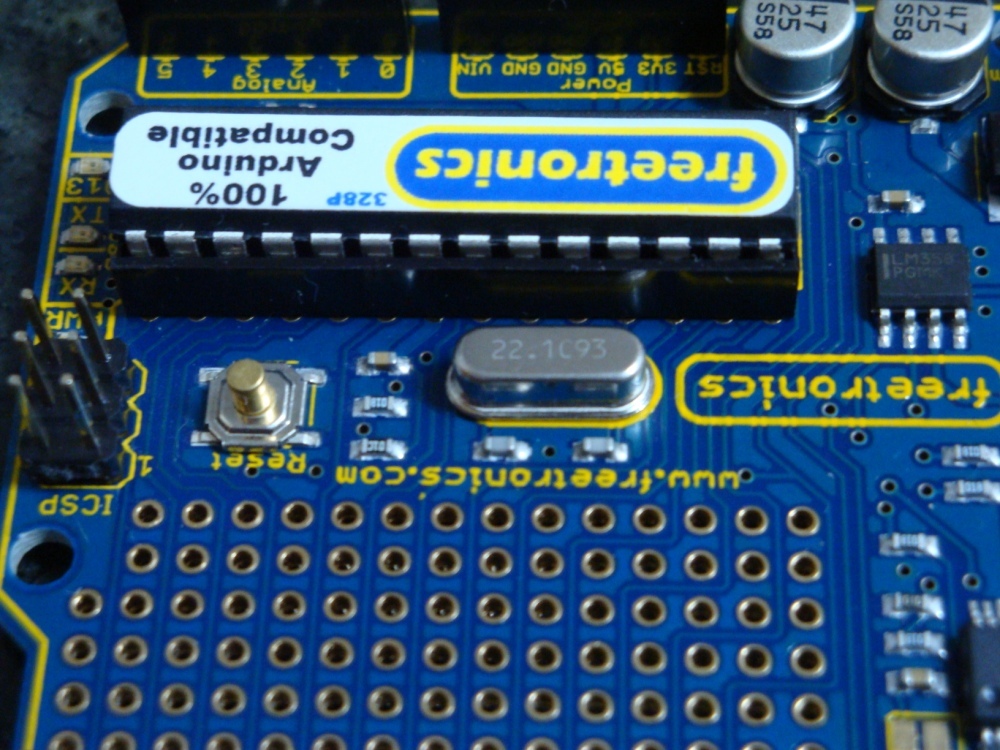
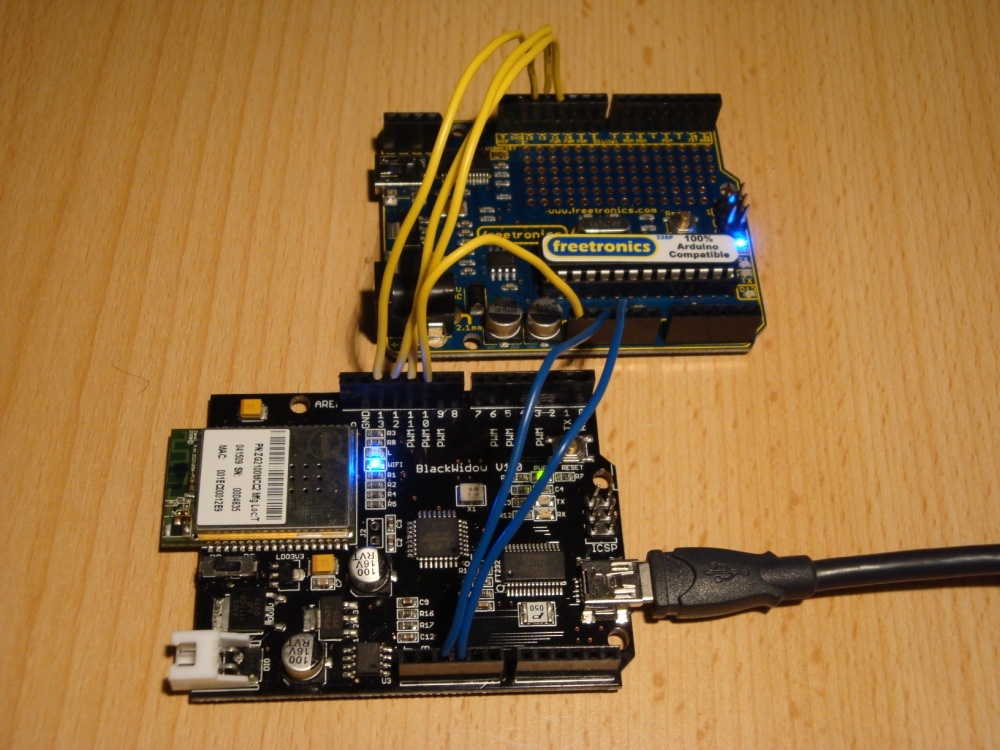
Here are some pictures.

P1010781P1010782P1010783

And here are the links to the products described.

Rugged Circuits QuadRAM


I’m very happy with my Saleae Logic too. Must write a review on this, one day. Great tool, more useful every day.

The described code is all available on Sourceforge, if you’re intending to try this at home.

The only finished example using the memory routines is the MegaSD project. Take a look at it on Sourceforge to see how to use the extra RAM.

HOW TO

What do we have to do to get this build working? Well it is pretty simple really, once everything is figured out. It is really only three steps.

  1. Initialise the RAM, and tell the AVR that it should enable its extended RAM bus.
  2. Tell the compiler that you’re moving the heap into the new extended RAM address space.
  3. Tell freeRTOS to move its heap to the new extended RAM address space.

Initialise the RAM

The RAM should be initialised prior to building the standard C environment that comes along for the ride. It can be done in the .init1 (using assembler) or in .init3 in C. I built both methods, but elected to just use the C method, as it is more maintainable (legible).

There are a number of references for this code. Some of the older ones refer incorrectly to a MCUCR register. That is not correct for the ATmega2560.

This example covers what Rugged Circuits suggest for their testing of the QuadRAM, but it doesn’t put the initialisation into .init3, which is needed to make the initialisation before heap is assigned. It makes the initialisation carefree.

// put this C code into .init3 (assembler could go into .init1)
void extRAMinit (void) __attribute__ ((used, naked, section (".init3")));
void extRAMinit (void)
{
// Bits PL7, PL6, PL5 select the bank
// We're assuming with this initialisation we want to have 8 banks of 56kByte (+ 8kByte inbuilt unbanked)
DDRL  |= 0xE0;
PORTL &= ~0xE0;  // Select bank 0
// PD7 is RAM chip enable, active low. Enable it now.
DDRD |= _BV(PD7);
PORTD &= ~_BV(PD7);
// Enable XMEM interface
XMCRA = _BV(SRE); // Set the SRE bit, to enable the interface
XMCRB = 0x00;

To ensure that this .init3 function, that I’ve put into lib_ext_ram, is included in your linked code, we need to call something from the lib_ext_ram library. If you’re planning to use the banks of RAM, then this is easy as you’ll naturally be calling the bank switching functions.

However, if you only want to use the extra 56kByte of RAM for simplicity (it is after all 7x more than you have available with just the internal RAM), then just call this function once from somewhere, possibly main(). I have added it to the freeRTOS stack initialisation function in port.c, so I don’t need to see it ever again.

extRAMcheck();

It returns the XMCRA value, that can be tested if you desire. But there’s no need as things will anyway have gone badly pear shaped if the RAM is not properly enabled. Calling this once is all that is needed to ensure that the .init3 code is properly inserted into the linked code.

Note: that the above code is specific to the QuadRAM device. The MegaRAM device has different IO in use, and the differences are noted in my code on Sourceforge.

Move the heap

The standard C heap has to be moved to the new location above the stack. There are other memory allocation options, but in my opinion this is the most sensible one and the only one I’m planning to implement.

The __heap_start and __heap_end symbols describe the addresses occupied by the extended RAM, and inform malloc() of the location of the heap. This is described in more detail here http://www.nongnu.org/avr-libc/user-manual/malloc.html. This is a great diagram showing the situation.

Malloc-x2
avr-gcc -Wl,-Map,MegaSDTest.map -Wl,--gc-sections -Wl,--section-start=.ext_ram_heap=0x802200  -Wl,--defsym=__heap_start=0x802200,--defsym=__heap_end=0x80ffff -mmcu=atmega2560 -o "MegaSDTest.elf" $(OBJS) $(USER_OBJS) $(LIBS)

Tell freeRTOS

Now freeRTOS has to be made aware of these changes to the heap location. There are three heap management options available for the AVR port. The two most memory economical options use a fixed array of memory defined in the .data section on initialisation. Clearly, this is not going to be useful. For the third option heap_3.c, which uses malloc(), we have nothing more to do.

However, getting heap_1.c and/or heap_2.c to work is not that complicated either. There are three parts to this. Firstly, creating a new section name, and locating it at the start of the desired heap space. We’ve already done that, above, with the –section-start command. The forth option heap_4.c has also been implemented.

Secondly, we have to make a small modification to both heap_1.c heap_2.c and heap_4.c to inform the compiler that the freeRTOS heap will be located at this .ext_ram_heap location. That is done in this manner (heap_2.c shown).

static union xRTOS_HEAP
{
//... edited ...
unsigned char ucHeap[ configTOTAL_HEAP_SIZE ];
//... edited ...
#if defined(portEXT_RAM)
} xHeap  __attribute__((section(".ext_ram_heap"))); // Added this section to get heap to go to the ext memory.
#else
} xHeap;
#endif

And finally, now we’ve (probably, just because we can) allocated a large (up to 32kByte maximum) freeRTOS heap, we need to ensure that the loader omits this section from its preparations for writing the .hex file to flash (in a similar manner to the way the .eeprom section is removed).

avr-objcopy --remove-section=.eeprom --remove-section=.ext_ram_heap -O ihex MegaSDTest.elf  "MegaSDTest.hex"

Something to watch for is that none of your other code is calling malloc(), because if it does its memory allocations will collide with the freeRTOS heap. Either check that malloc() is not being linked in or, for the paranoid, just assign the heap_1.c heap_2.c or heap_4.c heap to a region separate to your new malloc() heap addresses.

And that’s all there is to getting an easy 512kByte of fast no-wait-state RAM on your Freetronics EtherMega or Arduino Mega2560. Enjoy!

EtherMega (Arduino Mega 2560) and freeRTOS

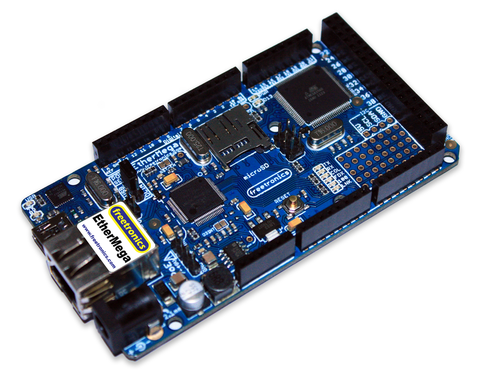
This is an unboxing and porting review of the Freetronics EtherMega.

Ethermega-production-sample-2_large

It is an Arduino Mega 2560 compatible product, with the added goodness of a Wiznet W5100 Ethernet module and a MicroSD card cage on board.

http://www.freetronics.com/products/ethermega-arduino-mega-2560-compatible-with-onboard-ethernet

Obviously, my first job is to port the freeRTOS code to run on the EtherMega ATmega2560 microcontroller. There are some things about the ATmega2560 that are different from other ATmega devices, making it necessary to modify the standard freeRTOS code for it to work correctly. But the main difference is that because of the size of its flash memory, it has a 3 byte program counter (rather than 2 byte in every other ATmega device).

There are only a few references to making the ATmega2560 work. This reference is the most compelling guide.

http://www.avrfreaks.net/index.php?name=PNphpBB2&file=viewtopic&t=70387

Stu_San has proposed a port, and I have used it as an accurate guide to getting things running. There are some changes. freeRTOS has changed significantly with regard to how the port.c file is built. Also, I’ve already implemented options for Timer selection. So the resultant code on the Sourceforge AVRfreeRTOS Project is slightly different to what Stu_San proposed.

https://sourceforge.net/projects/avrfreertos/

The avr-linker script needs to have a small addition to support Stu_San’s suggestions. For the purposes of simplicity (only change a little as possible, to get things working), I’ve only included the .task tag into the avr6.x file, that will replace the normal avr-binutils file in /usr/lib/ldscripts

UPDATE: as of avrlibc 1.8.0 there is a .lowtext section in avr6.x included at the bottom of flash, which is exactly what we need for this outcome. Hence, in the port for freeRTOS800 I’ve converted from .task to use .lowtext, which means there is no need to change or modify the avr6.x file. It will just work automagically.

At this stage the EtherMega is nicely flashing its LED at me, which means that the scheduler and IO addressing using my digitalAnalogue tools are working correctly. But, I’m sure there are many things still to improve over the coming days and weeks.

Update – 25 January 2012

Corrected an error calculating the serial port baud rate. The (all) AVR data sheet has an error in it, that only exhibits at certain CPU frequencies. Unfortunately, I’ve normally only used Arduino and Freetronics kit over-clocked to 22.1184MHz, which provides perfect baud rates with no error. This CPU frequency does not exercise the faulty data sheet calculation, to generate errors.

WormFood’s AVR Baud Rate Calculator

The standard Arduino CPU frequency of 16MHz causes the serial port to run too slow by 3.7% at 115200 baud (well outside the recommended range of 2%), and more importantly the data sheet calculation chooses the wrong set up value for the UBRR value driving the baud clock, causing the serial port to become unworkable. The calculation method has been improved in the AVR <util/setbaud.h> file, and that calculation method is now used in my serial library. New code uploaded.

Update – 8 March 2012

Completed the ChaN FatF library port to freeRTOS for driving the microSD card. Supports both SD and HCSD. Code in usual place.

Update – 5 April 2012

Completed the Ethernet library port to freeRTOS for driving the Wiznet W5100. Supports TCP, UDP and Raw IP modes. Code in usual place.

The standard Arduino Mega stk500v2 bootloader used by default in the Freetronics EtherMega does not work when loading more than 64kB into flash. I’ve found a modified version by msproul that works, or at least does now that I’ve changed it a little more, to be found here.

AVR Pong – Peggy2 & Danger Shield

This post should really be titled “AVR Pong, and some other non-firsts”.

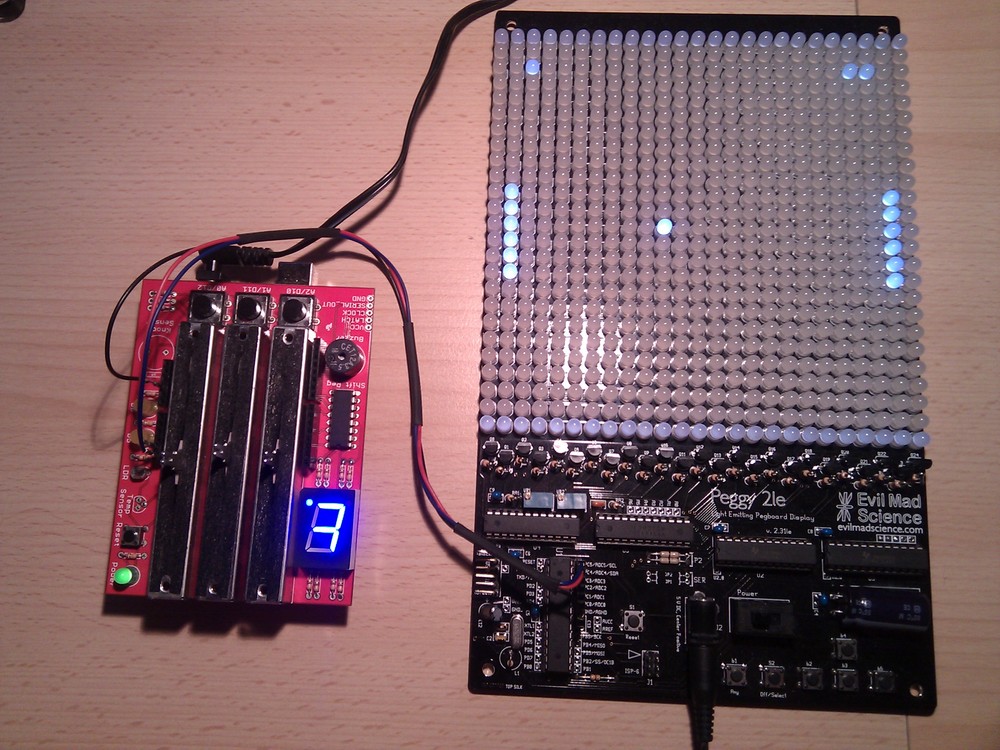
Avrpong

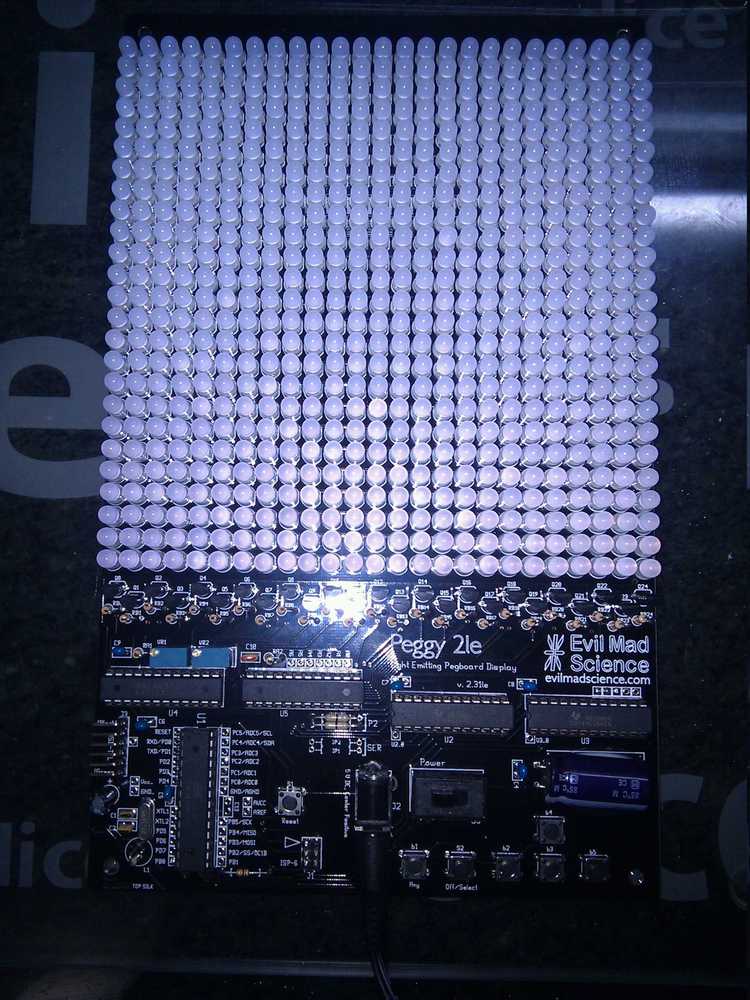
I saw the Peggy2LE and decided that it was something that I just had to have. I mean, 625 LEDs on one board can’t be bad, right? Well at least that was what I thought, until I tried to solder 1250 LED leads in one night.

Peggy2le

Anyway, to make a point out of this, I decided to make a Pong game, using the Peggy2 and a Danger Shield courtesy of Little Bird Electronics

So why is this interesting? Well there are somes significant firsts in there for me.

  1. Not just multi tasking (using freeRTOS), but real multi-processing using 2 AVR devices. The two AVRs communicate using the I2C bus.
  2. Developing an I2C code base that can simultaneously be Master and Slave, and is interrupt driven. I hope that the code can do MultiMaster too, but I haven’t fully tested it.
  3. Building a robust efficient video transfer protocol between the game mechanics AVR and the video (Peggy2) AVR. Using prioritised row updating and a CRC8, which I think it is pretty robust.
  4. Building a buzzer routine that can play melodies, with real notes, again fully interrupt driven, using Timer 2 (the Danger Shield buzzer is connected to PD3).

None of these things are original. In fact most of the code is borrowed from elsewhere, and the sources can be found in the files. But, I’m pretty stoked to have made it all work together, under freeRTOS. Small things, as they say, amuse small minds.

Code at AVRfreeRTOS at Sourceforge.

Updates with more detail when it is not so late.

freeRTOS and libraries for AVR ATmega with Eclipse IDE

I’ve created a Sourceforge project as a place to host all my current tools and working environment. The Sourceforge site is now 4 years old, and there’s a GitHub site too, which is now the most up to date repository

Preferred: Github freeRTOS & libraries for AVR ATMEGA

Secondary: Sourceforge freeRTOS & libraries for AVR ATMEGA

The Sourceforge repository has become so complex, with so many libraries, I thought that it was about time to make a simple version, which has the minimum implementation to get started. No additional libraries included. One timer option, using the watchdog timer. One heap option, using avr-libc malloc. One example application, just a blink with two tasks, for Uno, Mega, and Goldilocks boards.

Github minimum AVRfreeRTOS

The thing about open source. Sometime you have to give back.

Things I’m really happy about:

  • Arduino Uno family ATmega328p, Freetronics EtherMega (Arduino Mega2560), and Goldilocks ATmega1284p, scheduling and IO works.
  • Being able to use any Timer on the AVR as the system Tick. In practice this means Timer0 on 328p (Arduino Uno), Timer3 on 2560 (Arduino Mega) and 1284p (Pololu SVP) and Timer2 on 1284p with 32.768kHz watch crystal (Freetronics Goldilocks). The watchdog timer has also been implemented, and if there is no critical need for accurate timing, this is the lowest resource impact system tick.
  • Converting all of the relevant libraries to be friendly to a RTOS system. No delay busy-wait loops etc. Everything defers to (is interruptible by) the scheduler when waiting, or is driven from interrupts.
  • Having many finished projects, that are good demonstrations of lots of AVR and freeRTOS capabilities.
  • Having the Sparkfun LCD Shield working properly, with printf string formatting.
  • Having the Rugged Circuits QuadRAM 512kByte and MegaRAM 128kByte RAM extensions working on ATmega2560.
  • Porting ChaN FatF microSD card support for a variety of uSD shield cages.
  • Porting Wiznet W5100, W5200, and W5500 drivers for Arduino Ethernet shields.
  • Porting Wiznet and uIP DHCP and HTTP applications, creating options for implementing a basic web server.
  • Properly implementing semaphores for access to resources (ports, interfaces, ADC, LCD).
  • Properly implementing queues for transferring data between tasks (threads).

The repository of files on Sourceforge freeRTOS & libraries for AVR ATMEGA is a working collection for a freeRTOS based platform using the AVR-GCC and AVRDUDE platform. The development environment used was Eclipse IDE.

With the Eclipse IDE the C Development Environment (CDE), and the AVR plug-in are both needed. It is assumed that the AVR avr-libc libraries are installed.

The freeRTOS folder contains the most recent version 8.2.3 of freeRTOS, but it has been abridged down to only those files relevant for AVR GCC. The port.c file has been extensively modified to allow the use of either of the 328p Timer0 or Timer1 timers. And, the use of Timer3 on the Pololu SVP which has uses a 1284p. Timer 3 for Arduino Mega using a 2560 also works. Timer2 support has been added for the Freetronics Goldilocks and its 32,768kHz crystal. A Real Time system_tick is added using time.h functionality added to the system libraries described below.

The freeRTOSBoardDefs.h file contains most of the variables that you’ll need to change regularly.

There are some relevant and often used libraries added to the basic freeRTOS capabilities.

  • lib_io: contains often used I/O digital and ADC routines borrowed from Pololu.
  • lib_io: contains the tools to use the TWI (non-trademarked I2C) bus. It contains integrated interrupt driven master and slave routines
  • lib_io: contains the tools to use the SPI bus.
  • lib_io: contains routines to drive the serial interface. there are three versions; avrSerial for use before the freeRTOS scheduler has been enabled, and xSerial for use during normal operations. xSerial is interrupt driven and uses an optimised ring buffer. xSerialN is further generalised to allow multiple simultaneous serial ports.
  • lib_ext_ram: contains routines to drive the Rugged Circuits QuadRam on Arduino Mega2560, or Freetronics EtherMega.
  • lib_util: Optimised CRC calculations.
  • lib_util: Extended alpha (string) to integer (binary, octal, decimal, hexdecimal) conversion.
  • lib_time: Real time calculations, from avr-libc upstream, providing esoteric time and date calculations.
  • lib_rtc: drivers for the DS1307 RTC using I2C.
  • lib_fatf: contains ChaN’s FatF FAT32 libraries for driving the microSD card.
  • lib_iinchip: contains the W5100 drivers and the W5200 drivers from Wiznet.
  • lib_inet: contains a DHCP, and HTTP implementation.
  • lib-uIP: contains the uIP implementation derived from Contiki2.7, implemented on MACRAW mode of W5100/W5200, and extensible.
  • lib_ft800: contains optimised drivers for the Gameduino2, a FTDI FT800 implementation, with LCD and touch screen support.

Some more recent posts are here:

Arduino AVRfreeRTOS

Goldilocks Analogue Synthesiser

Goldilocks Analogue Prototyping 4

Melding freeRTOS with ChaN’s FatF & HD44780 LCD on Freetronics EtherMega

Rugged Circuits QuadRAM on Freetronics EtherMega

Quick review of Freetronics EtherMega

Description of the AVR Pong multi-processor game.

Additional steps to use the Mega2560

EtherMega (Arduino Mega2560) and FreeRTOS

I sell on Tindie

Step-by-step Instructions

Our Destination:

On completing these instructions you should have an Eclipse IDE (Integrated Development Environment) installed with all relevant libraries installed, to use the freeRTOS, and the libraries I’ve modified, to build projects (Eclipse term for a set of code) of your own.

We’re Assuming:

These instructions are based on an Ubuntu LTS install, but the path to the destination is not complex, and can be roughly followed for any installation platform.

Step 0. As usual on an Ubuntu (Debian) system, refresh the software sources.

sudo apt-get update

Step 1. Install the AVR Libraries.

Together, avr-binutils, avr-gcc, and avr-libc form the heart of the Free Software toolchain for the Atmel AVR microcontrollers. They are further accompanied by projects for in-system programming software (uisp, avrdude), simulation (simulavr) and debugging (avr-gdb, AVaRICE).
sudo aptitude install avr-libc avrdude binutils-avr gcc-avr gdb-avr

Step 2. Install the Arduino environment.

Doesn’t hurt to have the Arduino environment available. It can be used for programming boot-loaders (using AVR-ISP code), and generally for checking health of equipment, using known good example code.

This will pull in some extra libraries that the Arduino platform needs.

sudo aptitude install arduino


Step 3. Install the Eclipse IDE.

It is not necessary to use or install an IDE to develop with freeRTOS, or with any other system. It is easy to use makefiles and the command line with avr-gcc and avrdude. In fact, I didn’t use Eclipse for a long time. And, when I first started to use it, it felt very unnatural and clumsy.

However, now I’ve been using it for some time I highly recommend it, for the ability to see deeper into the code (definitions are detailed on mouse over), and to compare (live differences) and roll-back code to any step of your editing process.

Again, installation is easy with Ubuntu (Debian), but it can take a while. Lots of things get installed along with it.

sudo aptitude install eclipse

Step 4. Select the C & C++ development tools within Eclipse.

Eclipse is a Java based platform, but it works just as well with C, and C++, as it does with a wide variety of languages. Getting the C Development Tools (CDT) is the first step to a C environment that we’ll be using.

Open Eclipse, and lock it to your launcher. You’ll be using it frequently.

Using the Menus, click:

Help>>Install New Software…>>Add…

CDT Indigo http://download.eclipse.org/tools/cdt/releases/indigo

Select only “CDT Main Features”, and install these plugin development tools.

Step 5. Select the AVR development environment within Eclipse.

The AVR environment includes direct access to the avrdude downloading tool for one-click programming of your AVR devices.

Using the Menus, click:

Help>>Install New Software…>>Add…

AVR Plugin http://avr-eclipse.sourceforge.net/updatesite/

Select “CDT Optional Features”, and install these plugin development tools.

Step 5c. Select C/C++ Perspective

First you need to select the right perspective, being C/C++. Top right there is a button showing “Java”. Just to the left is a button (like a window) for selecting perspective. Select

Other…>>C/C++

When that is finished, you should have Eclipse menu button containing a AVR* with a green down arrow. That is the button used to program the device.

Step 6. Define a freeRTOS static library project.

There are lots of short cuts, and alternative ways to achieve things using context sensitive menus in Eclipse. I’ll concentrate on the top menu bar options, though you can get most things from a context menu click in the right window.

File>>New>>C Project: AVR Cross Target Static Library: Empty Project

A static library project is never run by itself. It is always linked to by other projects, called AVR Cross Target Applications.

Give the project a name (perhaps freeRTOS82x).

Now a project will apear in the “Project Explorer” window. Select it. We are going to set some options relating to this project.

Project>>Build Configurations>>Set Active>>Release

Project>>Properties

AVR:Target Hardware: MCU Type: ATmega328p (or other depending on hardware)

AVR:Target Hardware: MCU Clock Frequency: 16000000 (for Arduino hardware or other depending on your hardware)

C/C++ Build: Configuration: [All Configurations] (make sure this is set for all following configurations)

C/C++ Build: Environment: AVRTARGETFCPU: 16000000

C/C++ Build: Environment: AVRTARGETMCU: atmega328p

C/C++ Build: Settings: AVR Compiler: Optimisation: Other Optimisation Flags: -ffunction-sections -fdata-sections -mcall-prologues -mrelax (and use -Os or -O2)

Now we are going to add just the freeRTOS files, from the subdirectory within the freeRTOS82x_All_Files.zip file that you have downloaded from Sourceforge, and extracted somewhere sensible.

File>>Import…>>General:File System

Select the “into folder” as the project name you just created, and “Select All” for the import on the freeRTOS subdirectory. That should import the entire freeRTOS system. Spend some time browsing, if you like.

NOTE. Do NOT import the entire contents of the freeRTOS82x_All_Files.zip file. At this stage just import contents of the freeRTOS subdirectory.

Now we define the include library for the build. Remember to select [All Configurations] first.

Project>>Properties>>C/C++ Build>>Settings: AVR Compiler: Directories 

Add the from the “Workspace…”: freeRTOS82x/include

“${workspace_loc:/${ProjName}/include}”

Now there are fouralternative memory management routines, explained in the freeRTOS documentation. We are going to use the heap_2.c version, so we need to exclude the other three files from the build. In the project explorer RIGHT CLICK (context menu) each one then exclude them.

./MemMang/heap_1.c

./MemMang/heap_3.c

./MemMang/heap_4.c

Resource Configurations>>Exclude from Build…: Select All

Following this step, it should be possible to compile the library.

Project>>Build All

If there are any ERRORS, then go back and check the configurations for the project. Sometimes they may be changed, forgotten, or otherwise different from what you expected.

There will be some WARNINGS, relating to the usage of different Timers. I added these warnings to keep these things front of mind, as depending on which hardware I’m using the ./include/FreeRTOSBoardDefs.h file needs to be managed to suit.

Step 7. Define an Application Project.

An Application will generate the final hex code that you upload to the AVR with avrdude. This final code is created from the freeRTOS static library code generated above, together with code contained in the avr-libc, and any other linked projects.

We are going to import the UnoBlink or MegaBlink project as it makes a good example. Without a display, or real-time-clock module, it will only flash a LED. But, least we know it is alive.

To get started create a new project as below.

 File>>New>>C Project: AVR Cross Target Application: Empty Project

Give the project a name (perhaps MegaBlink or retrograde).

Now a project will appear in the “Project Explorer” window. Select it. We are going to set some options relating to this project.

Project>>Build Configurations>>Set Active>>Release

Project>>Properties

AVR:AVRDUDE:Programmer:New…

Configuration name: Arduino or Freetronics 2010

Programmer Hardware: Atmel STK500 Version 1.x firmware

Override default port: /dev/ttyUSB0 (FTDI USB) OR /dev/ttyACM0 (AVR USB)

Override default baudrate: as or if required.

AVR:Target Hardware: MCU Type: ATmega328p (or other depending on hardware)

AVR:Target Hardware: MCU Clock Frequency: 16000000 (or other depending on hardware)

C/C++ Build: Configuration: [All Configurations] (make sure this is set for all following configurations)

C/C++ Build: Environment: AVRTARGETFCPU: 16000000

C/C++ Build: Environment: AVRTARGETMCU: atmega328p

C/C++ Build: Settings: AVR Compiler: Directories: “${workspace_loc:/freeRTOS82x/include}”

C/C++ Build: Settings: AVR Compiler: Optimisation: Other Optimisation Flags: -mcall-prologues -mrelax (and use -Os or -O2)

C/C++ Build: Settings: AVR C Linker: General: Other Arguments -Wl,–gc-sections

C/C++ Build: Settings: AVR C Linker: Libraries: Add “m” without quotes. m is the standard math library, which should be included in most projects.

C/C++ Build: Settings: AVR C Linker: Objects: Other Objects Here you need to add the compiled freeRTOS library. And this is the only place where the Debug and Release builds are different.

With Release Build selected, paste “${workspace_loc:/freeRTOS82x/Release/libfreeRTOS82x.a}”

With Debug Build selected, paste “${workspace_loc:/freeRTOS82x/Debug/libfreeRTOS82x.a}”

Or select the Workspace option to navigate to the actual assembler files to be linked into the project.

Project References: freeRTOS82x ticked.

Now we are going to add the MegaBlink (or retrograde) files, from the MegaBlink.zip (or retrograde.zip) file that you have downloaded from sourceforge, and extracted somewhere sensible. If you downloaded the freeRTOSxxx_All_Files.zip, you have all the sources.

File>>Import…>>General:File System

Select the “into folder” as the project name you just created, and “Select All” for the import. That should import the 2 files shown inro the project file system. Spend some time browsing, if you like.

Following this step, it should be possible to compile and link the project.

Project>>Build All

If this step completes successfully, with no additional ERRORS, then the final step is to upload the new application into your Arduino or Freetronics device.

Make sure that you have your device plugged into the USB port, then simply hit the AVR* button in the row of buttons. You will see some green text showing the status of the upload, finishing with the words

avrdude done. Thank you.

Now, you should have a flashing LED.

Now you can import any additional projects, in the same way.

Step 8. Things to watch.

Turn on the serial port by removing the comments around the serial port definitions, and watch to see aspects of the program in action.

Expect to manage the amount of heap allocated in the ./include/FreeRTOSBoardDefs.h file, to ensure that the total SRAM utilised (as noted in the final linker stage when using heap_1.c, heap_2.c or heap_4.c) remains less than 100% or for ATmega328p 2048 bytes.

Expect to manage the amount of stack space allocated to each task during the set up, to ensure you’re not wasting space, nor (worse) you’re over writing another task’s stack.

For the Arduino Uno, keep the total number of tasks to below 4, otherwise too much SRAM is consumed in stack allocations.

Dogbot – Post 6 – Back on (PID) track

Exactly a year has passed since my last post on the Dogbot. I ended up getting very frustrated with my inability to get sensible odometry out of the Pololu Encoders using the Orangutan SVP auxiliary processor, and needed to put the project aside for a while.

I believe that I spend a good few weeks digging into the code, to see why I wasn’t getting sensible readings from either, or at times both, of the sensors. Then I gave up, and took up an easier challenge being learning PWM control, and started building the Retrograde Clock.
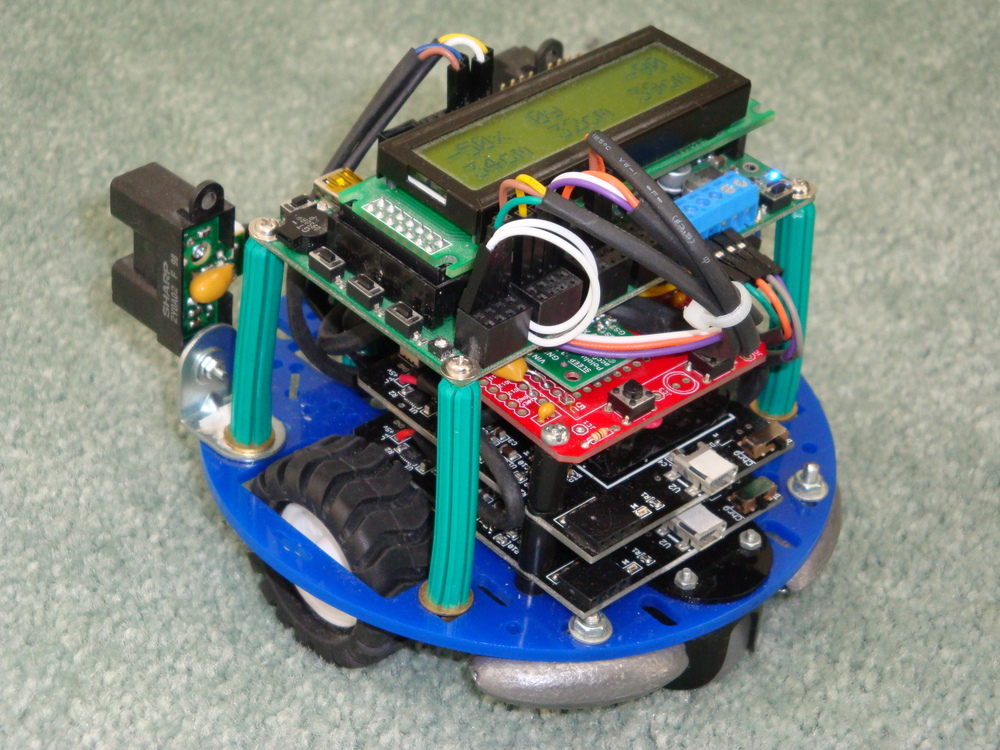
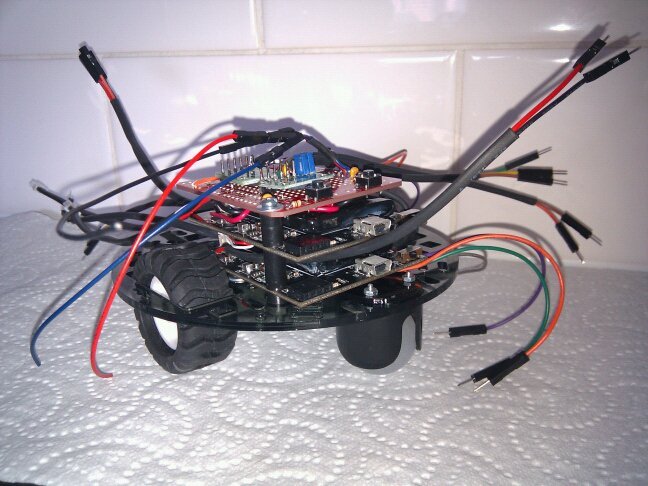
Recently, I picked up the Dogbot again, and determined that I would make it work. I worked out that one of the Encoders was not right, using my excellent new Seeedstudio DSO Nano. So, then I ordered a new Encoder. At the same time I ordered a new chassis for Dogbot, as the old one was damaged by my cleaner, and decided to replace the medium capacity Liquidware Backpack, used for driving the motors, with a high capacity variety.

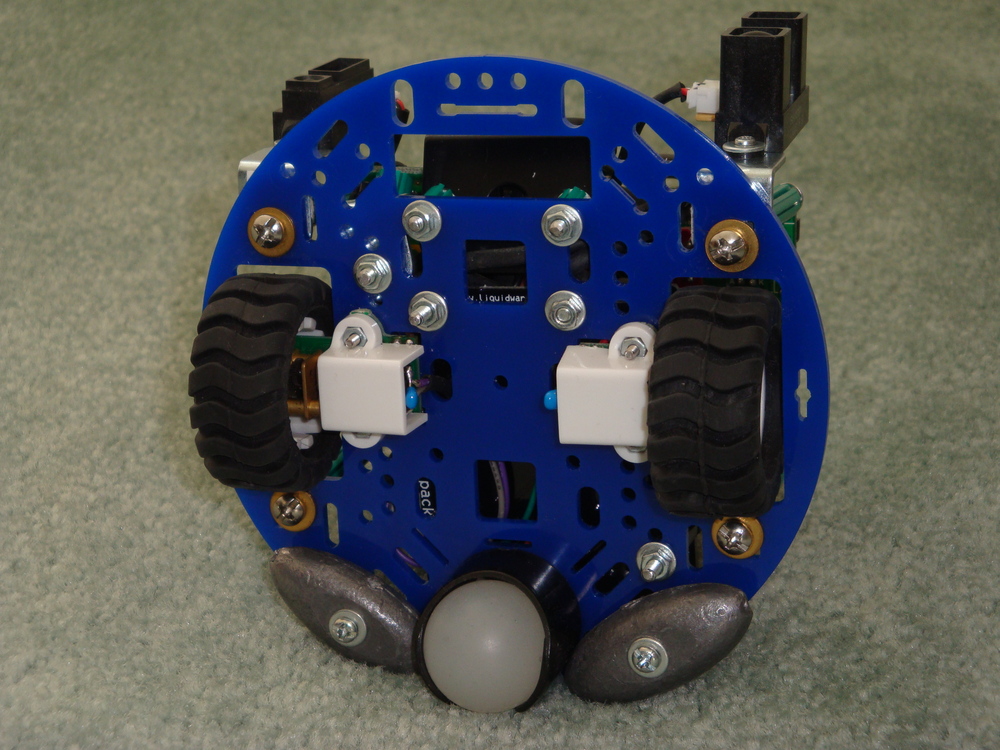
I took the opportunity to rebuild the dogbot onto the new chassis, and to simplify the system to make it more robust. One construction change was to use the Wall Plugs as a flexible structure, and screw into their ends, rather than using them as a spacer with a bolt through the middle. This allowed me to use the ends of the wall plugs as mounting points, because they could be fastened tight. Previously, because of the angles, they had needed to remain relatively loose.

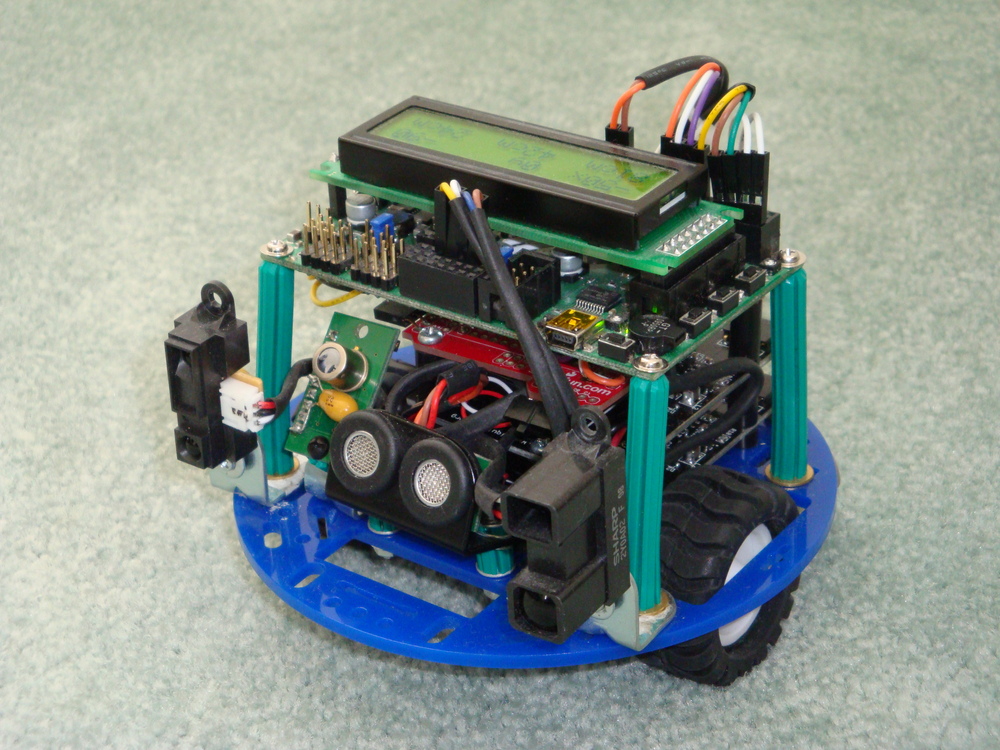
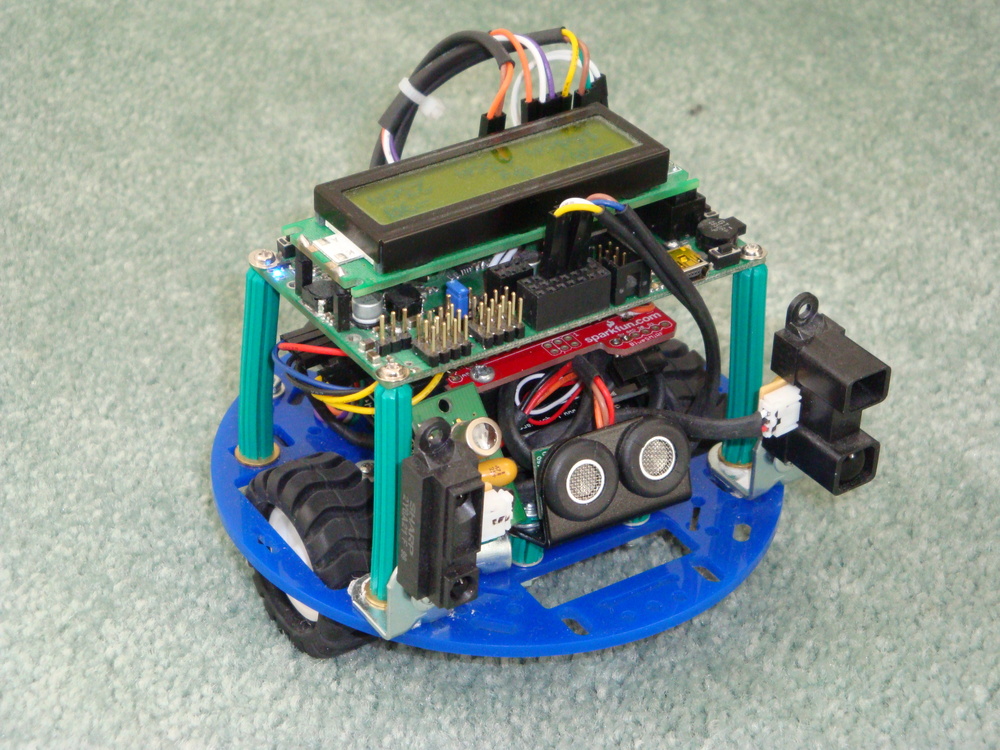
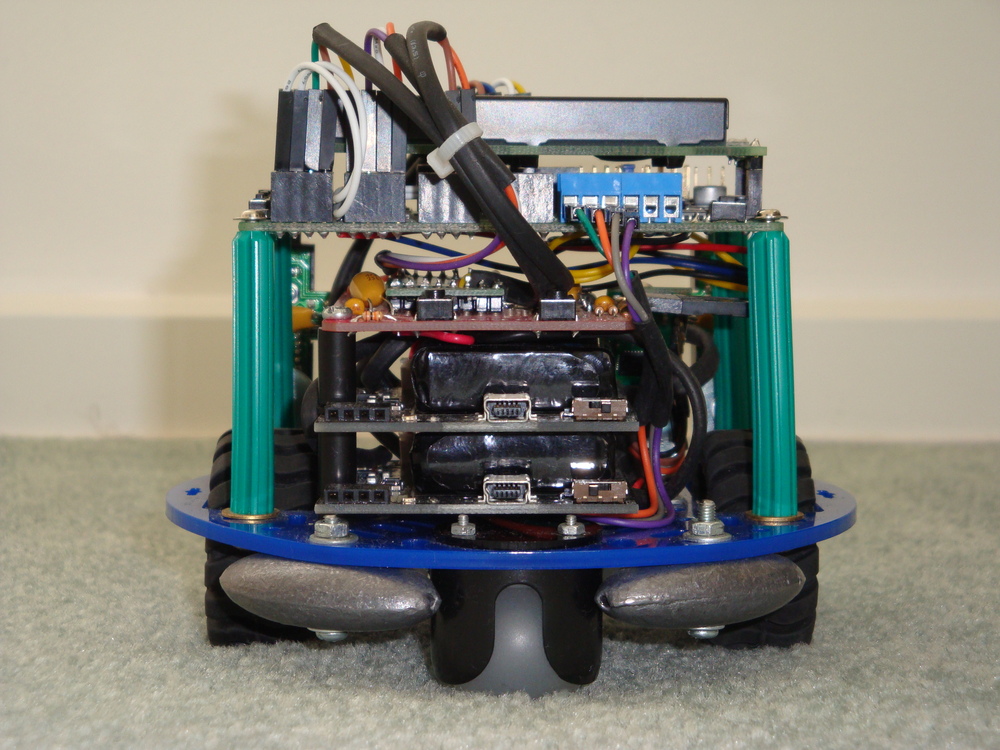
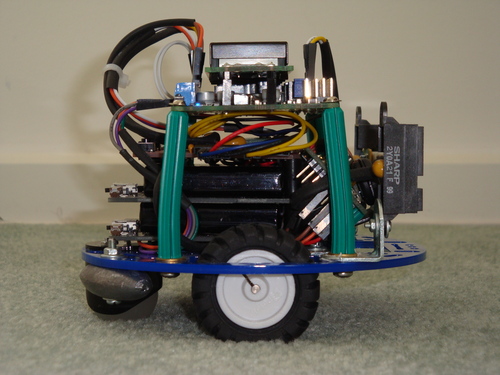
Dsc04118Dsc04119

I have removed the rear mounted PIR sensor at this stage. It is easy to add again, at the appropriate time.

Dsc04116Dsc04117

Following reconstruction, I found that the Encoders continued to give unusual (wrong) results. Finally, I looked into the details of the encoder outputs again, using the DSO, and realised that their outputs really NEED to be exactly tuned, using the tiny pots, to 50% duty square waves, otherwise the Orangutan SVP cannot get an accurate count. With this fixed, then the Odometry was built up accurately, measuring the count to travel a fixed distance. With this figure, the actual diameter of each wheel can be calculated, and hence the travel required to go in a straight line.

It is important to note, that Dogbot doesn’t go in anything like a straight line, with full power applied to each motor. The friction, and wheel size differ enough to make it curve quickly from the straight and narrow. So PID is absolutely necessary to keep it running straight. With PID implemented properly then, finally, Dogbot runs straight.

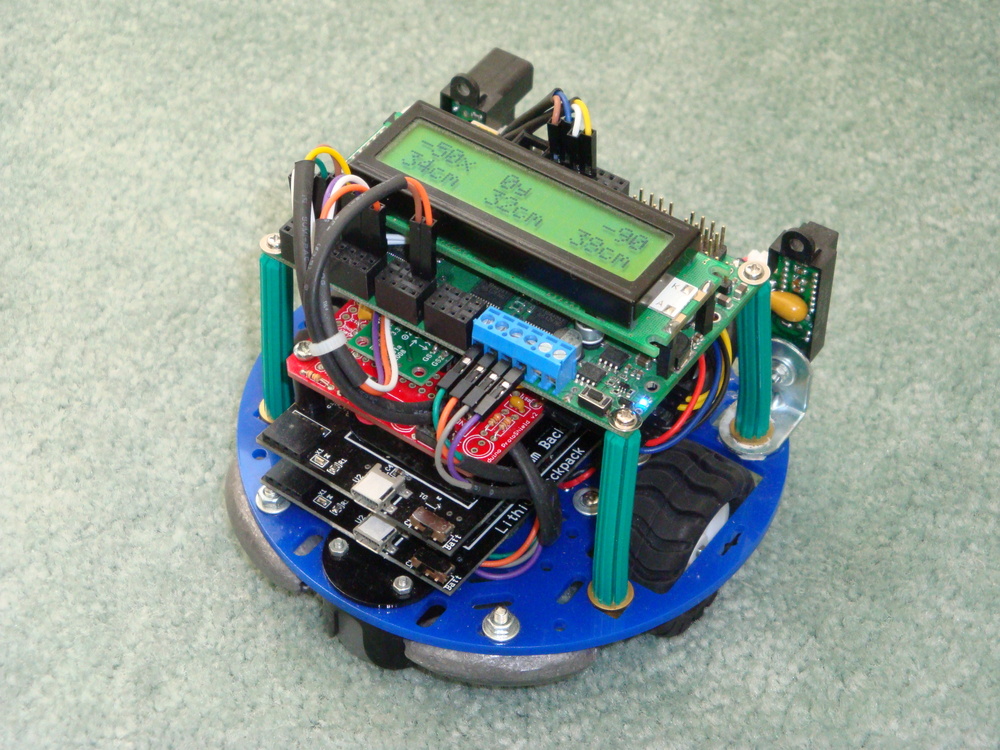
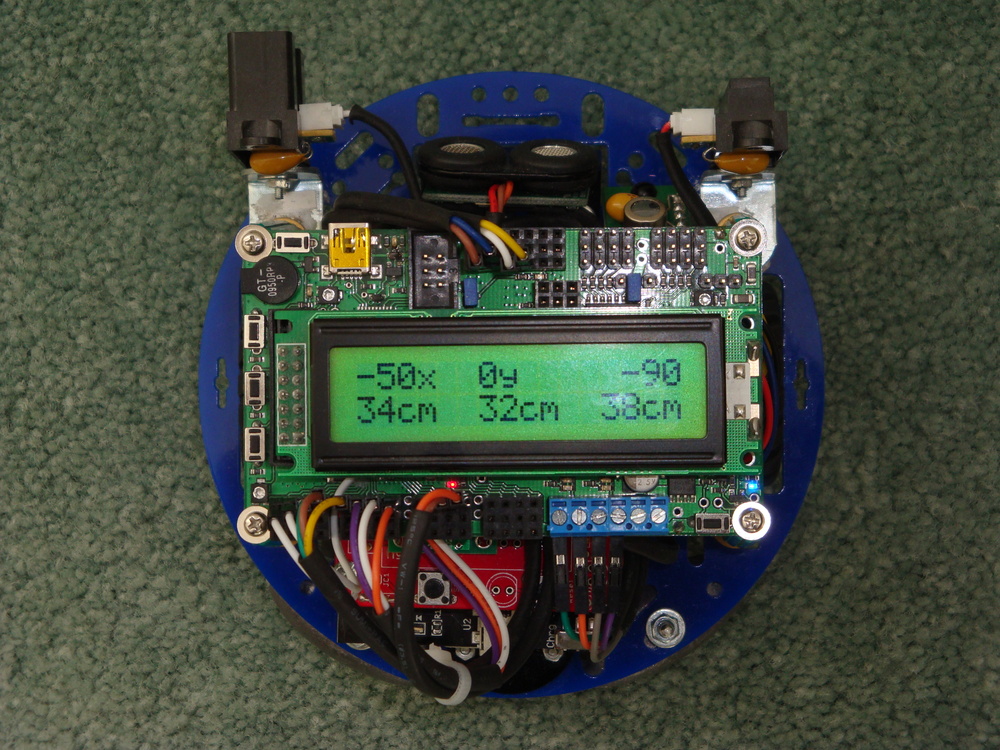
These photographs are taken with the display indicating two items. On the top line, the target distance, represented in x and y distance to travel, is noted. Also the deviation from correct heading to target. The instruction is requesting Dogbot to travel 50cm along what it has been told is the x dimension. The instruction is also implying that the Dogbot is initially facing in y direction, and needs to rotate its poise 90deg clockwise to face along x, before it begins its travels.

Dsc04125

The code is set up to all allow specification of an initial poise, and a final poise, as well as x and y distances to travel, for the Transport Task to undertake.

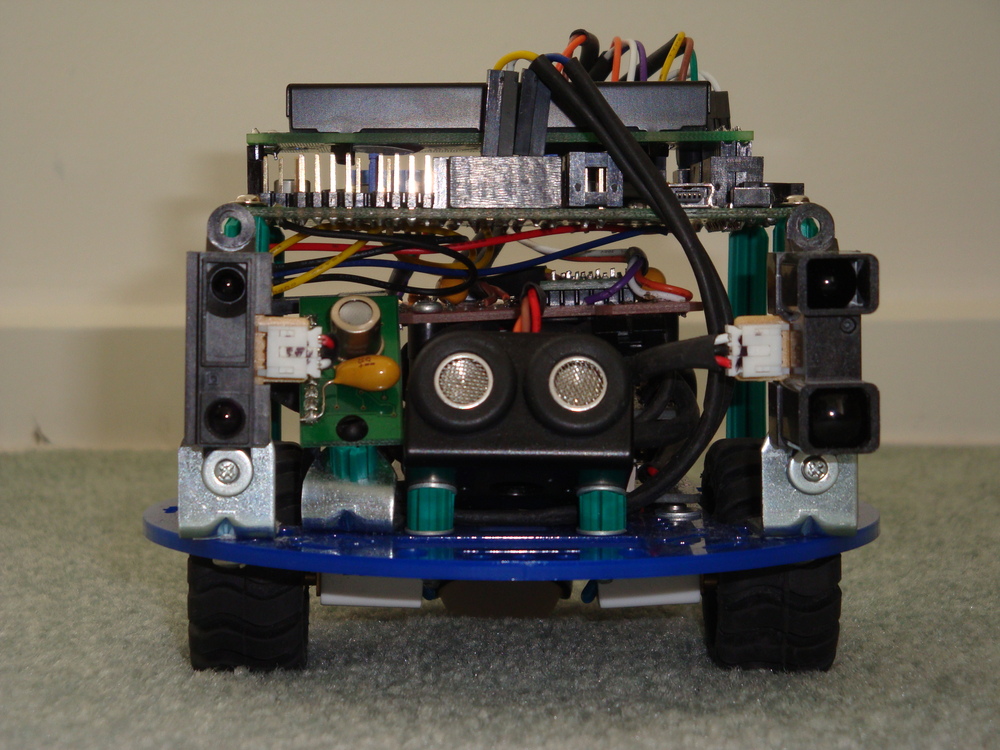
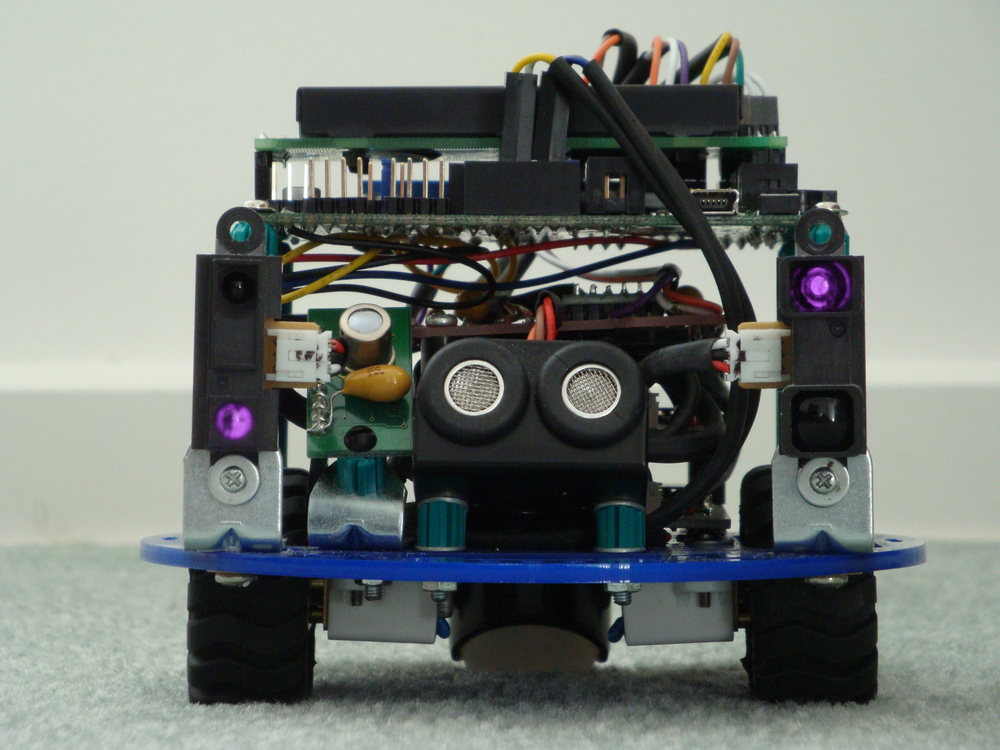
The bottom row of the display shows the distance reading indicated by each of the three sensors across the front of Dogbot. Central indication being the I2C ultrasonic sensor, which is very accurate, but not at all directional. Left being the long range IR sensor, and Right being the medium range IR sensor. These sensors are very directional and can differentiate a thin rod or edge of a hand placed in front of them. Combination of these sensors will enable Dogbot to travel safely in a forward direction.

Not displayed is the output from the I2C thermal sensor. It has been tilted back, so that its vertical array of 8 pixels is looking up from +5deg to +70deg. It can see very small differences in temperature from ambient, which it also reports.

At this stage my work continues to get the Dogbot to consistently travel from one location/poise to another location/poise. Whilst I have the code in a state that it can achieve this, it doesn’t yet do it consistently, because of variables in the drive system that need to be properly tuned. And, I could improve the code a lot too. The code is a bit amateurish.

Notes to photographs

Dsc04122Dsc04121Dsc04124Dsc04123Dsc04127

Liquidware battery packs have a on/charge switch that effectively isolates the battery. This has proven useful, as I can turn the motors off, whilst still programming the Orangutan SVP. Not designed, but in hindsight very useful.

To counter sagging voltages, and noise on the supply lines, I have fitted 1uF Tantalum capacitors on all of the sensors. This helps to ensure that they are getting a good supply when they are firing.

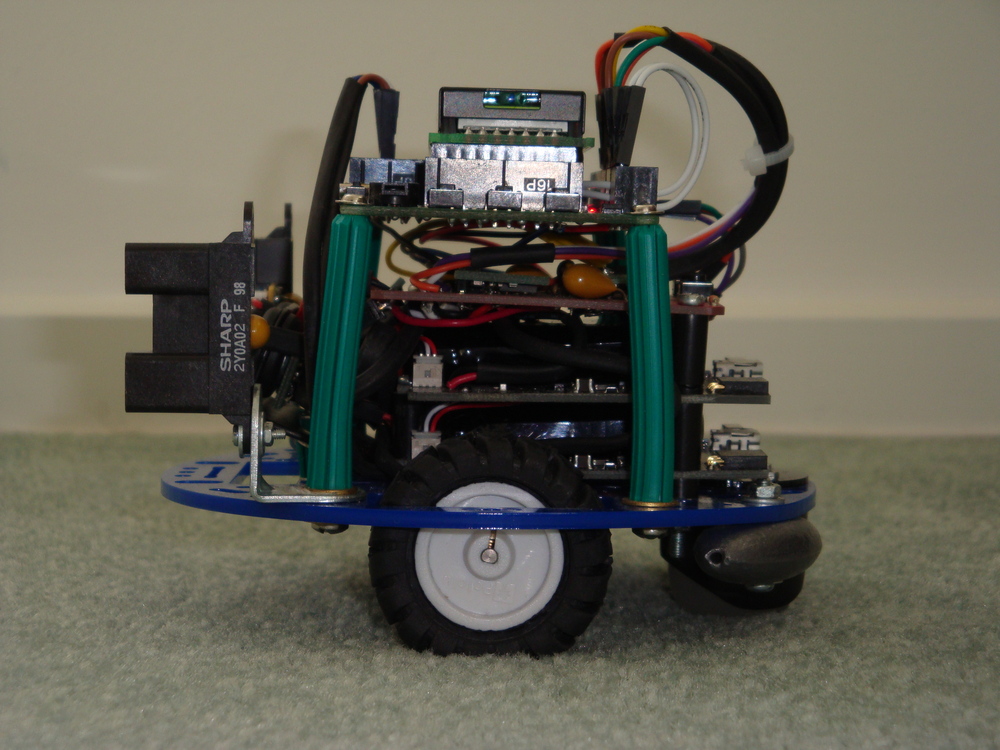
Both Thermal array sensor, and Ultrasonic distance sensor are canted up to get their cone of vision away from the floor. I have left the IR distance sensors facing parallel with the floor, as they don’t get false readings from the floor (assuming it is flat), and I don’t want to miss low objects that might interfere with the Dogbot.

I added the fishing weights to the rear of Dogbot to ensure it had good balance. It has sufficient weight to rear from the batteries to stand up properly, but when braking it is quite top-heavy. So, the low heavy weight at the rear helps to ensure that it doesn’t tip over.

Although there are no other items on the motor circuit, I have added some 1nF bypass capacitors on the motors. Can’t hurt.

It is alive. Here the IR glow from the sensors has been captured by the camera. Perhaps Skynet lives?

Dsc04130

My next steps are to finish the Transport Task so that it can reliably go from point to point. Then, I’ll integrate more information into the Transport task from the accelerometer sensors, to improve directional accuracy. Then to build some mapping code to allow obstacles to be located and avoided.

Freetronics freeRTOS Retrograde Real Time Clock (DS1307) – Part 3 Final

In Part 2  I promised to build a very stylish finished product, that could be displayed with pride. Well, I don’t think I’ve quite achieved that. But, at least now I consider the project finished, and now have the confidence to get on with other projects.

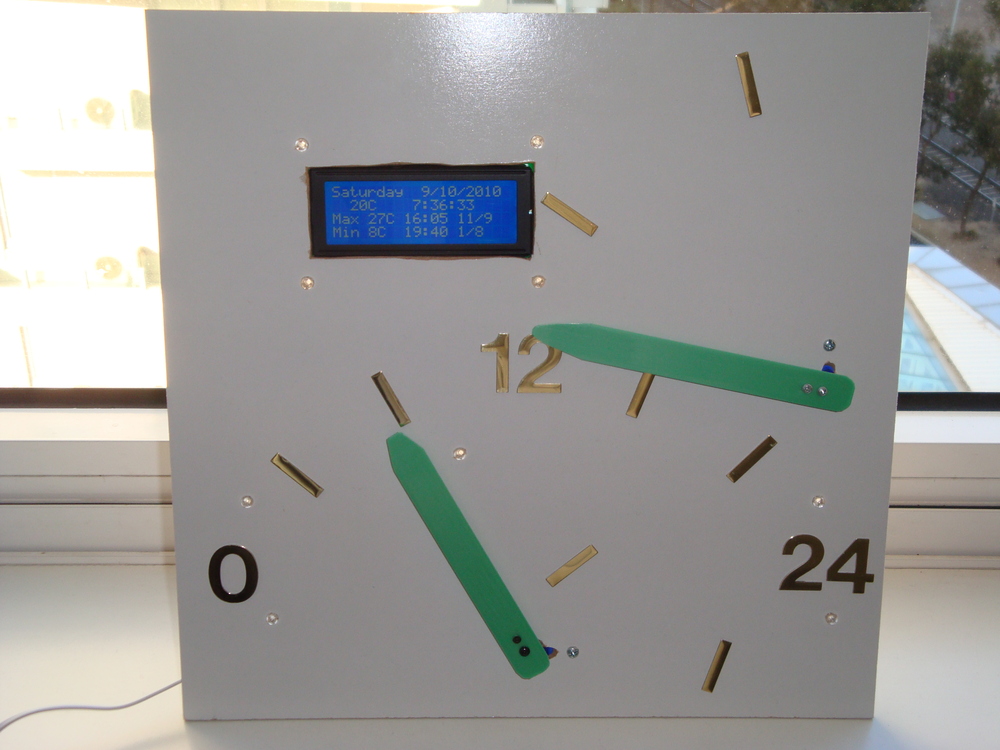
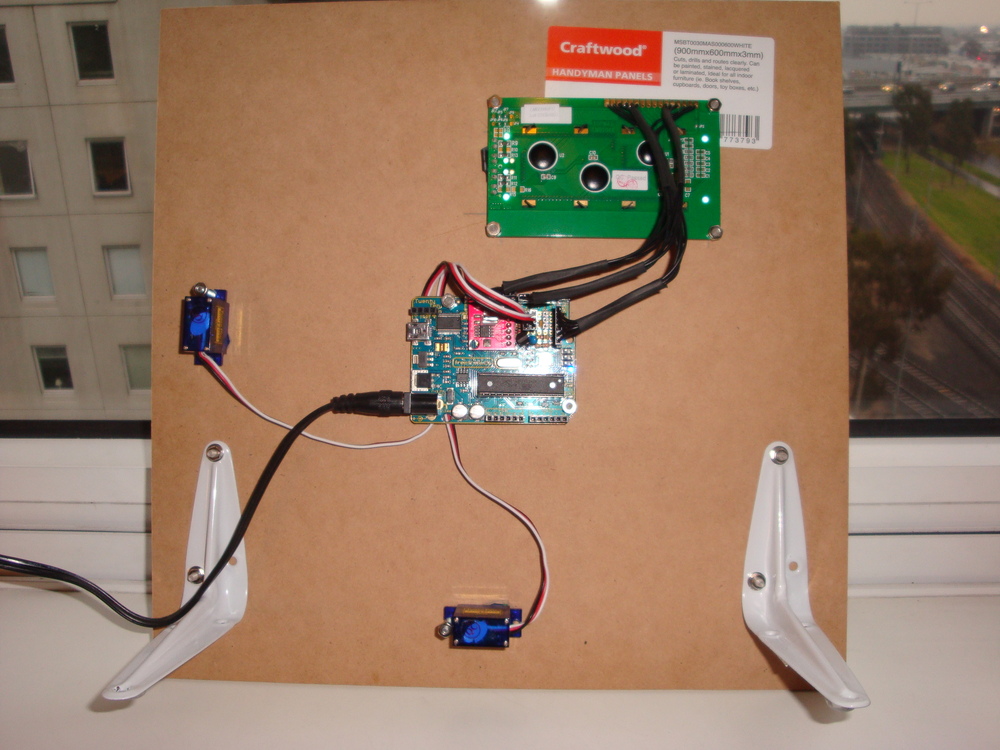
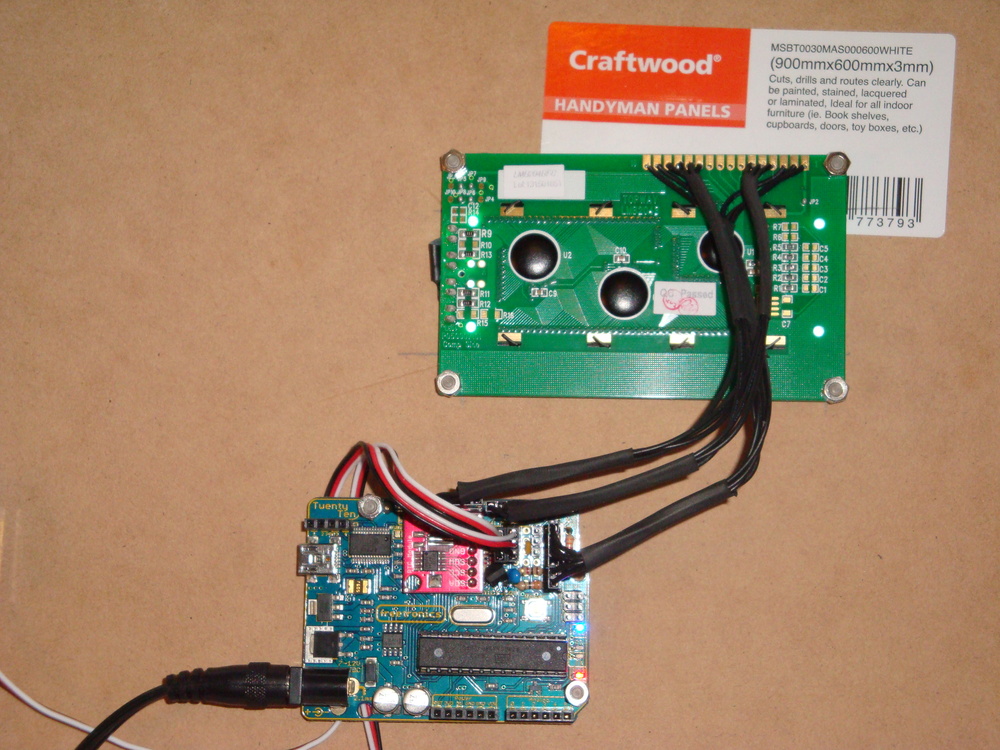
I have mounted some tiny servos, the funky white on blue LCD display, and the Freetronics 2010 board on some Craftwood. Cutting the hole for the LCD was a bit hit & miss, using a carving knife to shape the hole, and managing not to loose any fingers in the process.

Dsc04060Dsc02851

The hour servo is mounted at the bottom of the board, and travels clockwise from midnight, with noon vertical, until it re-tours to 0 on the stroke of midnight. The hour hand travels clockwise from 0 minutes at the bottom, over 30 minutes horizontal, to 59 minutes at the top of the stroke. At 0 minutes, the minute hand re-tours to 0 at the bottom. I find the movement of the servos on the stroke of the hour somewhat like a chime. Not too oppressive, but enough to draw my attention to the passing of another hour.

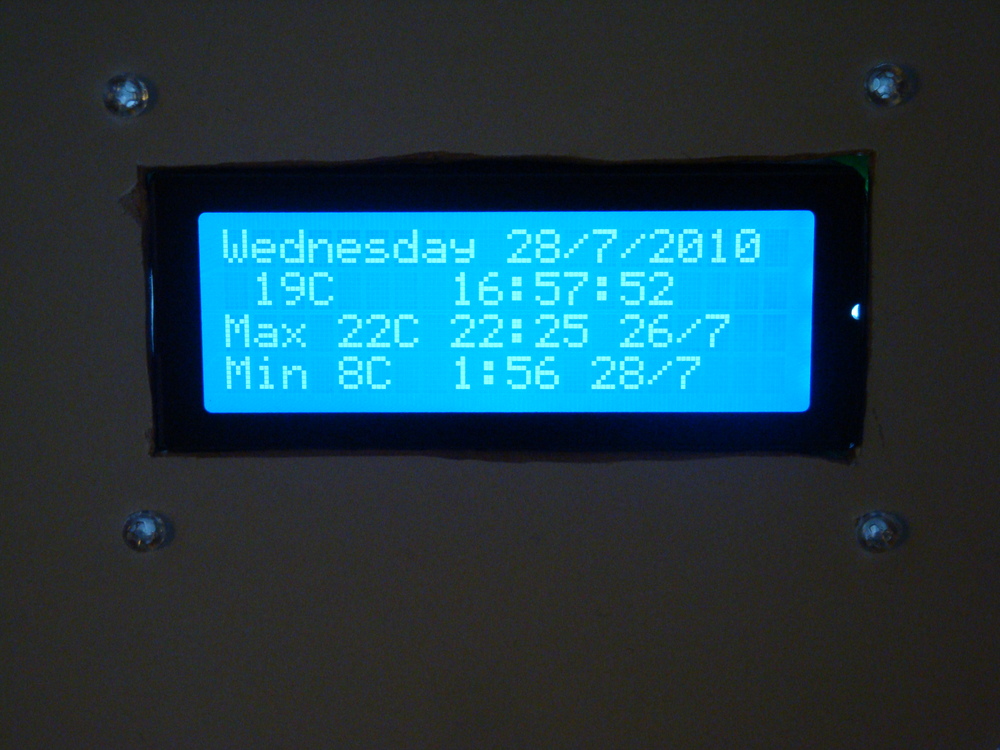
As the 4 line LCD has so much screen real estate, I have added the maximum and minimum temperature display, with hour, day and month when each extreme was reached.

Adding the LM335Z Temperature IC was discussed in Part 2. I found that the accuracy of the LM335Z IC could be improved by firstly knowing exactly what the Vcc was for operating the AVR device. Measuring this, and putting it in the calculation enabled enough accuracy to be found. Using the 5V regulator on the Freetronics 2010 delivered 4.97V for me, and this value is hard coded into the code. I have several LM335Z devices and they have different offsets, which is adjusted by modifying the subtraction in the Kelvin to Celsius calculation. As the LM335Z is accurate once the offset is established, there is no need to operate it in the “accurate” mode, IMHO, given we have software to make the adjustments it needs.

Dsc02855Dsc02852Dsc02854

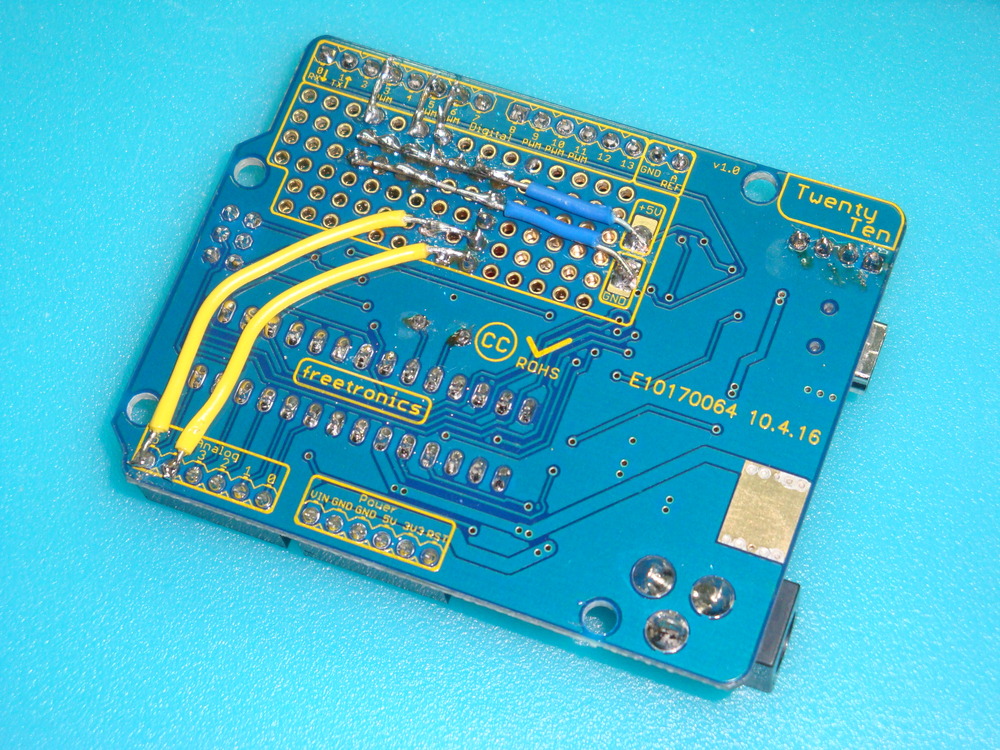
The instability in the temperature readings discussed in Part 2 was caused by the long wires to the sensor. Once the device was fixed into the prototyping area on the 2010, together with bypass capacitor, the stability of readings improved greatly. However, during testing, I noted that the maximum values were reading very high. These false high maximum values were caused because the ADC process was sampling during a servo move. The servos consume a lot of power, and this causes voltage drop on Vcc. Hence the reference voltage for the ADC is no longer accurate.

Dsc02845Dsc02847

To prevent the ADC from operating during the servo moves, I simply used one of the freeRTOS semaphores I established previously. I use semaphores to control access to the LCD, the I2C and to the ADC. Use of a semaphore enables independent processes to share a single hardware resource without conflicts developing. The fix for the erroneous high maximums was done simply by taking the ADC semaphore (to prevent the ADC reading process from starting) during times when the servos are being instructed to move. Simple, with freeRTOS to manage the process interaction for me.

ERRATA

The code included in the updated source does not properly fix the issue of false maximum temperatures. It incorrectly releases the ADC semaphore immediately following resetting the PWM values. This means that the hands can still be moving when the ADC process gets unblocked which causes false maximums, because of voltage droop in Vcc, typically at midnight when both hands are in motion.

The fix is to move the vTaskDelay call between the set_PWM_hardware and xSemaphoreGive calls. I also increased it to 2000 milli Seconds too, to ensure the hands are really stopped before the ADC process gets unblocked.

set_PWM_hardware( servoHours_uS, servoMinutes_uS );

vTaskDelay( 2000 / portTICK_RATE_MS ); // a 2 second delay to ensure the hands have properly stopped.

xSemaphoreGive( xADCSemaphore );


END ERRATA

Another piece of code added since Part 2 is to write the maximum and minimum temperatures and the times the extremes occurred into the EEPROM available on the 2010. The functions to use the EEPROM are available in the AVR library and are very straightforward to use. Having a permanent record of temperature extremes is perhaps one thing this clock does, that other clocks in my house can’t do.

There are a lot of comments in the updated freeRTOS Retrograde Clock code, now hosted at Practical Arduino. As a reminder the code uses the AVR and Pololu Libraries, so these both need to be installed before you compile.


Freetronics 2010 (Arduino Duemilanova) freeRTOS Real Time Clock (DS1307) – Part 1

I was pondering the blank space on my 2010 recently, and combining that space with some other left over kit from Dogbot, I decided to make a dual retrograde analogue clock.

To build the clock I have the choice of either using NTP to sync a wireless enabled device, or use a RTC clock and re-set it every month or so. For this iteration, I’ve decided to go the RTC route.

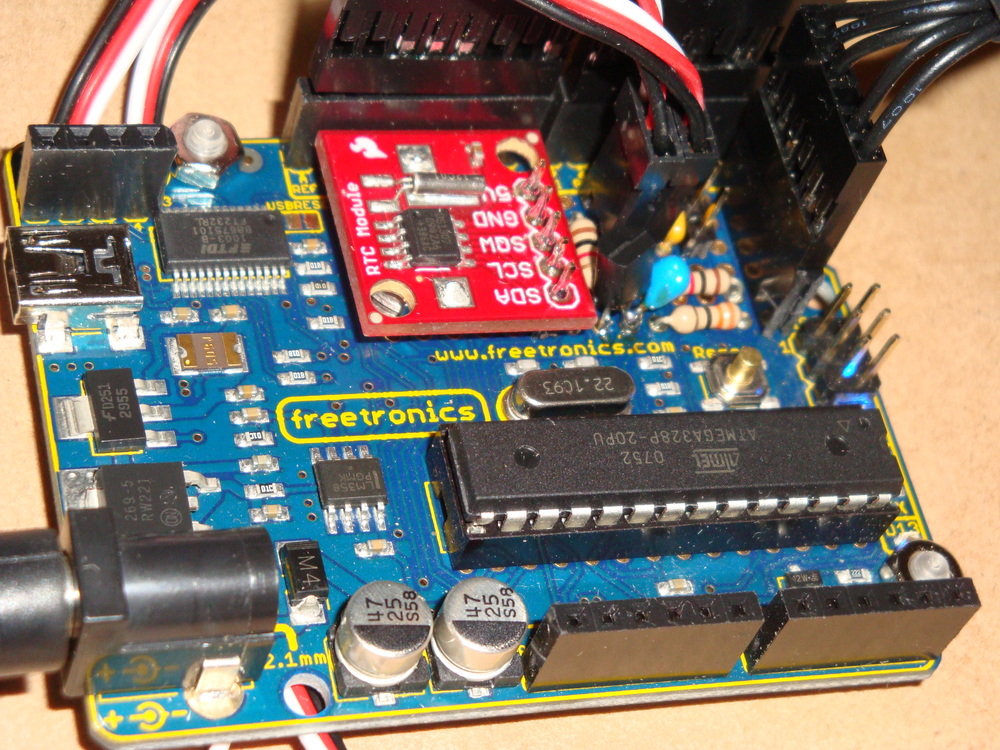
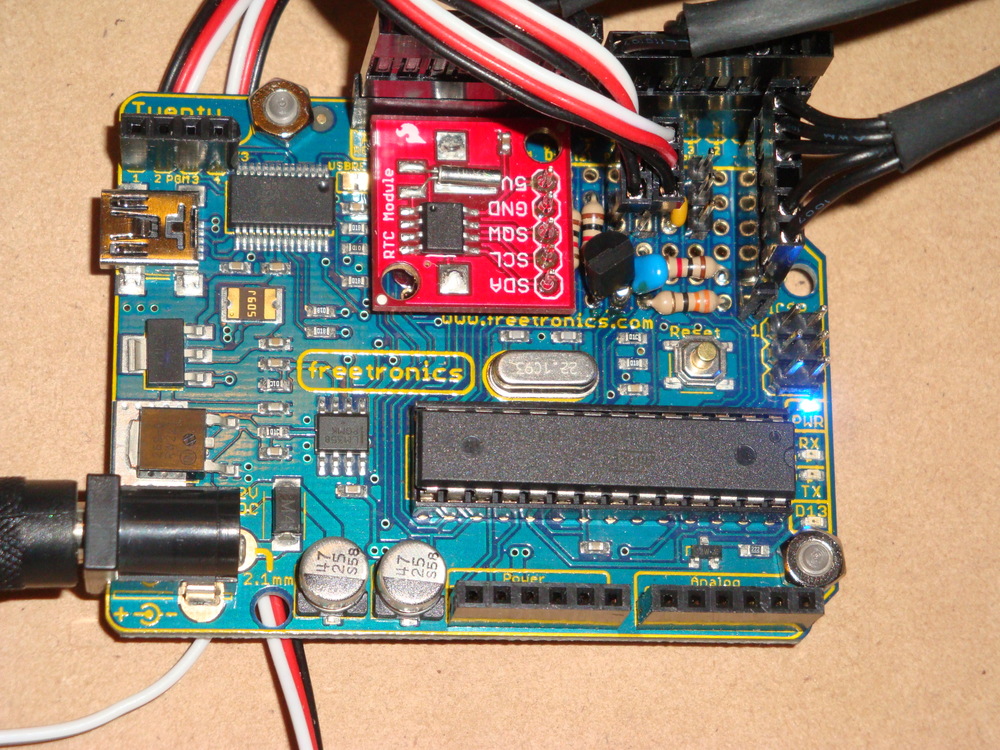
Actually, reading this Tronixstuff page also got me going on the idea of using a DS1307 chip, and also Sparkfun makes a nice module that just happens to fit in the vacant space on the 2010. So, I bought one from LittleBird Electronics.

Only other thing to do was to add some servo headers, to get me going with the analogue clock face (using servos).

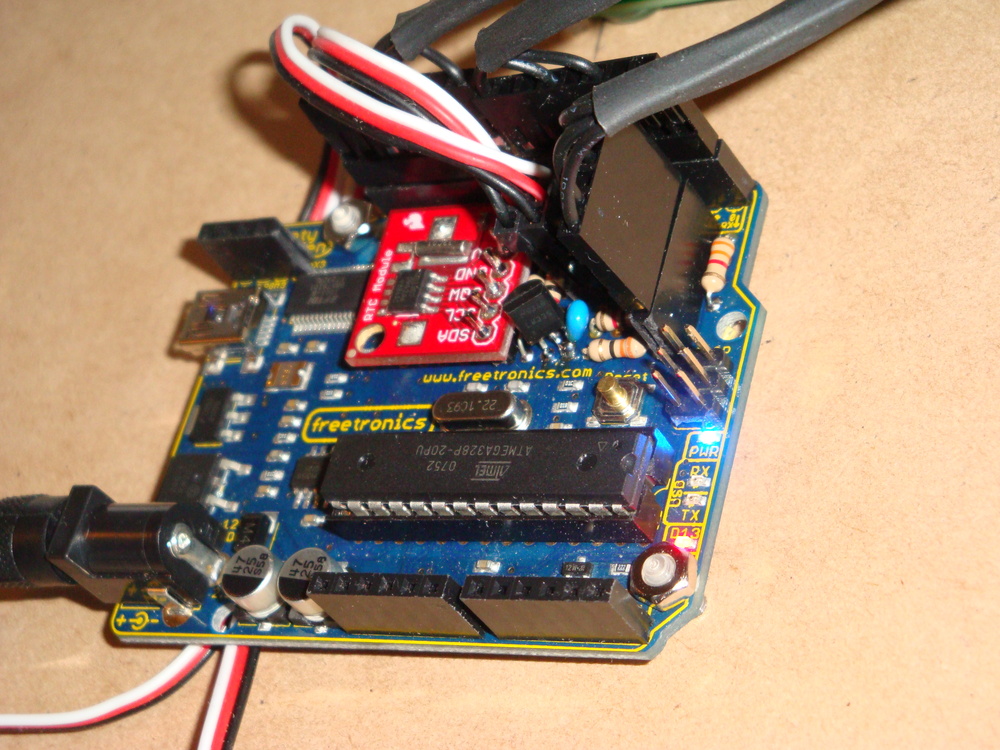
The picture below shows the layout. I tried a few different options, but this layout seems to only affect the legibility of the pin labelling. Other layouts mask the crystals close together, and I’m not sure how that would affect clock accuracy, or prevent the battery from being removed (9 years later).

Dsc02777

Yes, everything fits. Now to the soldering iron.

Dsc02779

Ok now it is soldered together, and everything looks reasonably fine.

Dsc02780Dsc02781

Now, on the test bed, I have the RTC clock working well using my beloved freeRTOS, and can get on with using the servos to drive analogue hands.

Dsc02785Dsc02784

In the years since this instruction was writen, I’ve migrated to Github. So the code is hosted here. The freeRTOS code is also posted on Github. I used the Pololu Library for writing to the display, so it needs to be installed along with the normal AVR libraries.

Part 2 looks at building the PWM control for the retrograde hands, and adding a temperature function.

Freetronics 2010 (Arduino Duemilanova) Overclocking & Review

Recently, I picked up a Freetronics 2010 from Little Bird Electronics.

Dsc02744

I thought that it would make a nice upgrade to my Dogbot test bed. It uses the same USB connector as Dogbot’s Pololu SVP, so it saves me from keeping different USB cables handy, but is in every way 100% the same as the Arduino Duemilanove that I’ve been using up to now.

But, everything I own is hacked in some way. So as usual, I thought that the 2010 could be improved, just as I’ve improved the Duemilanove before it, by overclocking it to 22.1184MHz.

Overclocking to 22.1184MHz

So why change the clock frequency to this odd number of 22.1184MHZ, and not to 20MHz which would be in specification?

It turns out that because of the binary and integer world the 2010 and the Duemilanova ATmega328p MCU live in, it is much better have a “nice” binary and integer friendly base frequency. Unfortunately, although 16MHz on a 2010 or Arduino sounds nice, from the point of view of integer programming, clock scaling, and UART interfacing, it is difficult to get clean integer numbers.

A small example.
16MHz clock scaled to 115200baud = 138.888888889 so rounding gives an error term.
20MHz clock scaled to 115200baud = 173.6111111111 so, again, rounding gives an error term.
22.1184MHz clock scaled to 115200baud = 192 with no rounding error.

Also, even though we are getting 16,000,000 instructions per second out of a standard?2010, and that should be enough for any application. I can get 22,118,400 or a 38% improvement for the cost of a few cents. So, why wouldn’t you?

What kind of issues can occur?

Well, over-clocking means that the ATmega328p is out of specification. But, I’m not too worried about pushing specification on this project, as the 328p is certified for an industrial operating temperature range, which is way outside of my operating temperature… There are also unverified reports of AVR ATmegas working successfully up to 32MHz.

In the overall scheme of things, raising the clock frequency on the AVR ATmega328p above specification by 10% to 22.1184MHz is no big deal.

Upgrading Process

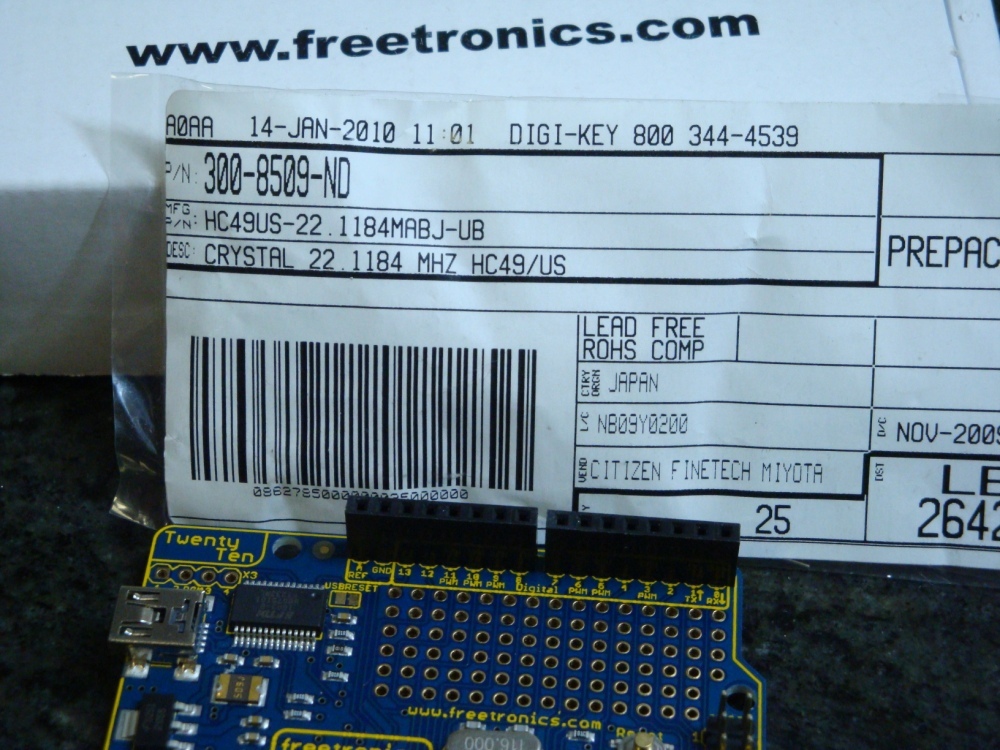
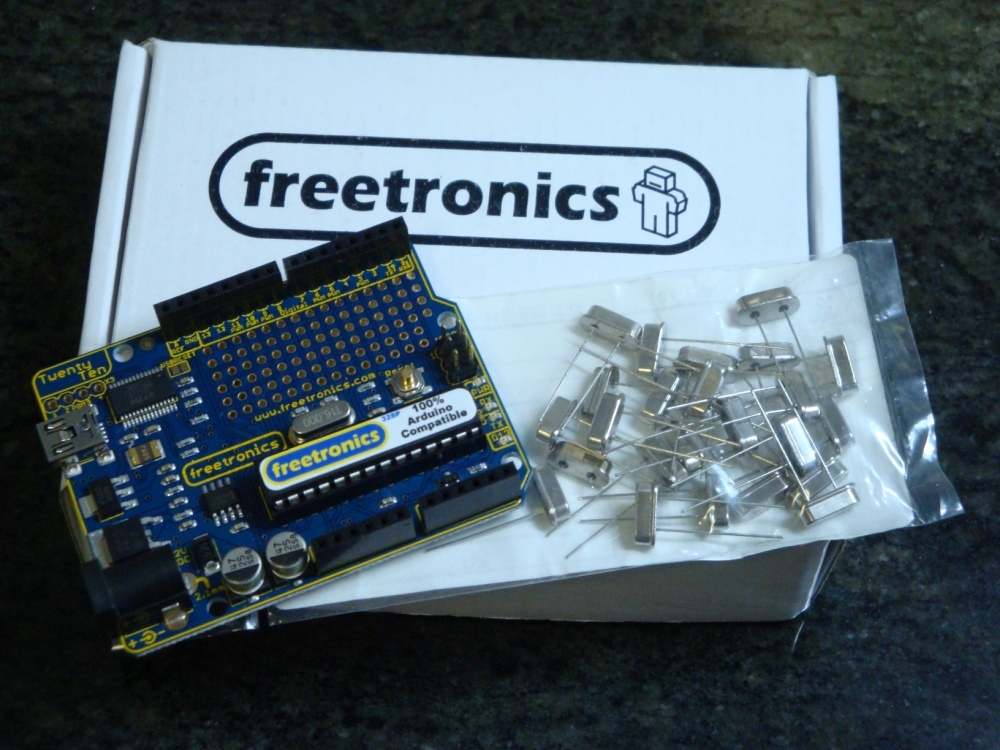
1. Obtain a 22.1184MHz HC49/US crystal from Digikey They’re pretty cheap. Buy a bag in case of accidents.

Dsc02746Dsc02747

2. Use a knife tip under the existing 16MHz crystal to give you a lever to pressure it into removal, without burning your fingers. It will get very hot!

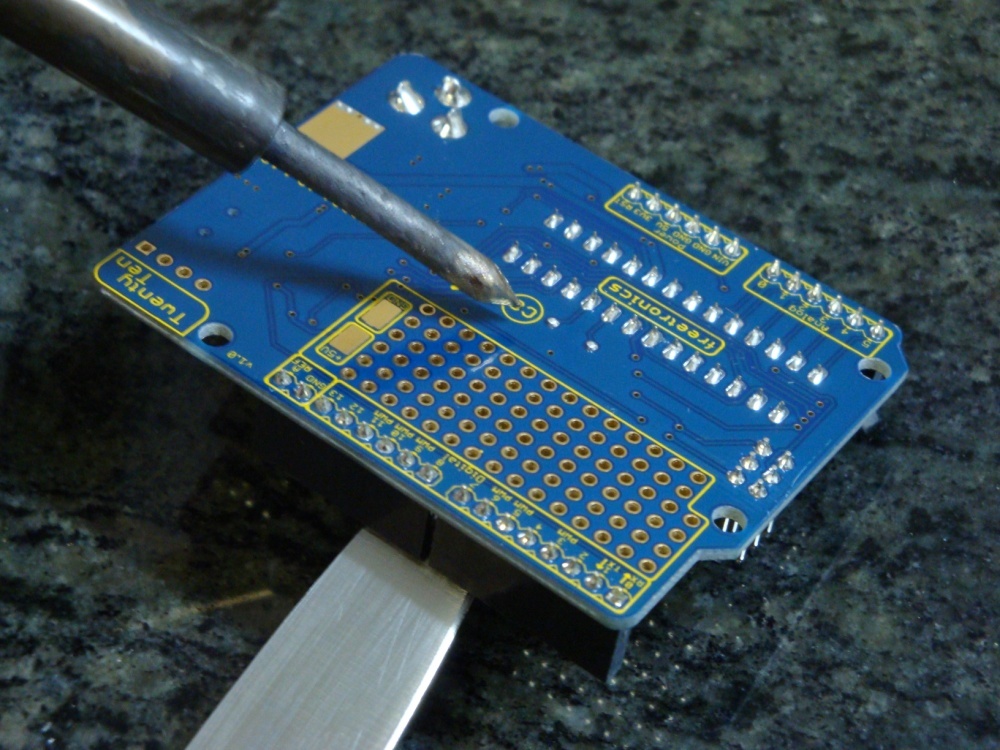
3. Turn over the board and use a soldering iron to heat the joints, whilst leaning on the knife to lever out the 16MHz crystal. Once it is removed, use some solder wick or similar to remove excess solder, and make it easier to insert and solder the new 22.1184MHz crystal.

Dsc02751Dsc02750Dsc02755

4. Building a new bootloader. In replacing the crystal, the 2010 is effectively bricked. You can no longer communicate with it using the standard bootloader. It is now running too fast and out of specification for avrdude to communicate with it, so we have to compile and burn a new boot loader before we go any further. I choose to use the Adaboot328 bootloader from Ladyada. It resolves a few known issues with Arduino compatible boards, and is easy to compile.

In the ATmegaBOOT_xx8.c file, change the UART baud rate to 115200, if you use avrdude for programming (if using Arduino IDE, do not change this from 19200). Who has time to wait around these days for 19200 baud, anyway?

/* set the UART baud rate */
#define BAUD_RATE?? 115200

In the Makefile, change the AVR_FREQ value to 22118400L for the adaboot328: TARGET.

adaboot328: TARGET = adaboot328
# Change clock frequency from 16000000L
adaboot328: AVR_FREQ = 22118400L

Then, compile the bootloader, and keep it safe.

5. Prepare an ISP. There are many alternative ways to do this, and here is not the place to describe the alternatives. Suffice to say that I used the AVRISP method in the Arduino-0018 IDE. I’ve struggled with avrdude (which I otherwise use for everything) as a bootloader ISP. I don’t know why, but I can’t make it work.

It happens that I have a standard Arduino clone available, which I prepare as the AVRISP, by uploading the following sketch File>Examples>ArduinoISP.

6. To be able to use Arduino IDE to burn our special bootloader, you have to replace the standard ATmegaBOOT_168_atmega328.hex bootloader file, found in ~arduino/bootloaders/atmega/ with our newly generated file. And, to make things simple, I just rename or remove the standard one, and replace it with our newly prepared and renamed bootloader with this name
ATmegaBOOT_168_atmega328.hex.

7. Connect our Freetronics 2010 up using the AVRISP connections, described on the Arduino web site. Make sure we have the right board type selected; it should be Duemilanova w/ ATmega328. Then using the Arduino IDE use Tools > Burn Bootloader > w/ Arduino as ISP.

Dsc02756

8. Program a sketch using either the Arduino IDE, or using avrdude, remembering that the baudrate is set to 115200. And, enjoy.

Conclusions regarding the Freetronics 2010.

Its a very well designed and produced device, that is 100% compatible with the Arduino Duemilanova. Some advantages are: the mounting holes are slightly larger so cable ties go through nicely, smaller USB connector is more common than the B connector used on Duemilanova, and there’s no solder in the holes for the X3 connector so it is easy to add headers to make it possible to burn its own bootloader (if you want).

It runs my freeRTOS build with no problems, as seen in this demo on my Dogbot test bed with a Robot Electronics Thermopile, and Sharp IR Distance sensor.

Dsc02760Dsc02761

Dogbot – Post 4 – Hardware & freeRTOS Complete

Ok so some time later, I’ve finished building up the hardware.

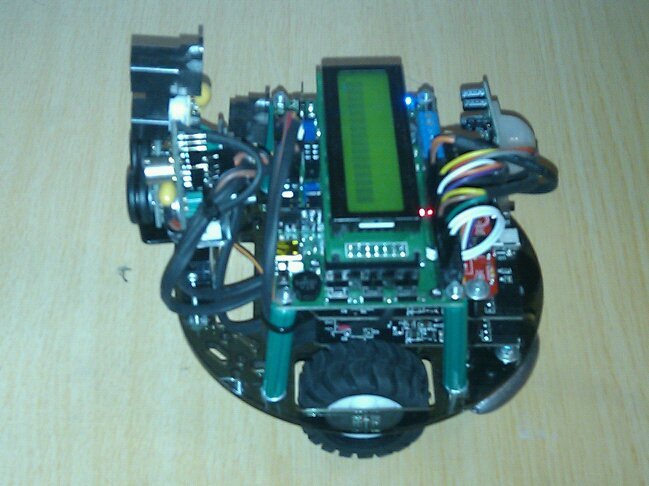
It is basically a 4 level stack, with the two Li batteries on the bottom, followed by a proto board which carries the acceleration sensors, and distributes power and signal lines.

The top level is the Pololu SVP and its daughter display card (level 5).

25742_419162736067_610931067_5621385_2222535_n
25742_419162646067_610931067_5621384_4844593_n
25742_419162756067_610931067_5621386_5021337_n
25742_419162776067_610931067_5621388_4697390_n
25742_419162806067_610931067_5621389_6666628_n
25742_419162876067_610931067_5621390_4382446_n

What issues are there?

Well electrically none. All the signals are working perfectly, as demonstrated by the Pololu Analogue and Digital code, together with their motor and servo code. All the hardware seems to be functioning perfectly.

But, there are some problems.

The Li battery packs are incapable of providing enough current. I should have done a power budget before building. Everything works pretty well, although there is some voltage droop to 4.5V, until I turn on the neck servo. Then Vcc drops to 3.5V and the DogBot dies.

So the choices are to remove the servo, and program the scanning function using the body, or build a new boost power supply. At this stage I’m tending to think it would be better to just remove the neck servo, and use the chassis for scanning.

Also finished is the freeRTOS port, using Timer3 from the Atmel MegaAT1284, which is not found on other devices of this type. This allows me to have no conflicts with previously written code (using Timer0, Timer1, or Timer2). However, I will still need to go through all libraries to ensure that they don’t cause problems by being interrupted by the RTOS.

So now onto some heavy system design to work out exactly how to implement the mapping and searching functions, and how to drive in a straight line.

Wifi Dogbot – Post 3 – Pin Outs

Changed the processor to Pololu Orangutan SVP

*** PIN OUTS DEFINED

For the Orangutan SVP from http://www.pololu.com

Port Pin Orangutan (Alternate Functions) Function Notes

  • PA0 (ADC0) IR Analogue Distance Sensor GP2Y0A02YK0F (20cm-150cm) to ~2.8V – ORANGE
  • PA1 (ADC1) IR Analogue Distance Sensor GP2Y0A21YK0F (10-80cm) to ~2.8V – WHITE
  • PA2 (ADC2) LISY GIRO Z Axis Analogue Sensor to 3.3V – PURPLE
  • PA3 (ADC3) MMA7260QT Three Axis Accelerometer – X Axis Analogue to 3.3V – YELLOW
  • PA4 (ADC4) MMA7260QT Three Axis Accelerometer – Y Axis Analogue to 3.3V – BROWN
  • PA5 (ADC5) MMA7260QT Three Axis Accelerometer – Z Axis Analogue to 3.3V – GREEN
  • PA6 (ADC6) Motor1 Current sense – WHITE
  • PA7 (ADC7) Motor2 Current sense – WHITE
  • PB0 (T0) LCD control line RS Timer/Counter 0
  • PB1 (T1, CLKO) LCD control line R/W
  • PB2 (AIN0, INT2) LCD control line E
  • PB3 (AIN1, OC0A) Timer0 PWM output A? PIR (Digital LOW) – YELLOW (& RED & GREY)
  • PB4 (SPI_SS, OC0B *) Timer0 PWM output B
  • PB5 (SPI_MOSI) auxiliary processor control
  • PB6 (SPI_MISO) auxiliary processor control
  • PB7 (SPI_SCK)? auxiliary processor control
  • PC0 (I2C_SCL) Ultrasonic Ranger SRF10 Addr 0xE0 & Thermopile Addr 0xD2 – BROWN
  • PC1 (I2C_SDA) Ultrasonic Ranger SRF10 Addr 0xE0 & Thermopile Addr 0xD2 – ORANGE
  • PC2 LCD data line DB4 – user pushbutton (pressing pulls low)
  • PC3 LCD data line DB5 – user pushbutton (pressing pulls low)
  • PC4 LCD data line DB6 – green user LED (high turns LED on)
  • PC5 LCD data line DB7 – user pushbutton (pressing pulls low)
  • PC6 Motor2 direction control line – LEFT MOTOR
  • PC7 Motor1 direction control line – RIGHT MOTOR
  • PD0 (USART0_RXD0)
  • PD1 (USART0_TXD0) digital I/O red user LED (low turns LED on)
  • PD2 (USART1_RXD1, INT0)
  • PD3 (USART1_TXD1, INT1)
  • PD4 (OC1B) Timer1 PWM output B – Buzzer
  • PD5 (OC1A) Timer1 PWM output A – I/O servo SPWM? – Neck Servo
  • PD6 (OC2B) Timer2 PWM output B – Motor2 speed control line
  • PD7 (OC2A) Timer2 PWM output A – Motor1 speed control line
  • AREF VCC 3.3V Battery Supply

IN PHYSICAL ORDER

TOP RIGHT TO LEFT

  • PD5 (OC1A) Timer1 PWM output A – I/O servo SPWM – Neck Servo
  • Quadrature Sensor D – YELLOW (LEFT 2nd)
  • Quadrature Sensor C – WHITE (LEFT 1st)
  • Quadrature Sensor B – BLUE (RIGHT 2nd)
  • Quadrature Sensor A – BROWN (RIGHT 1st)
  • GND

BOTTOM RIGHT TO LEFT

  • VIN
  • GND
  • M1 OUT B – PURPLE (RIGHT)
  • M1 OUT A – GREY (RIGHT)
  • M2 OUT B – ORANGE (LEFT)
  • M2 OUT A – GREEN (LEFT)=
  • PD3 (USART1_TXD1, INT1)
  • PD2 (USART1_RXD1, INT0)
  • PD1 (USART0_TXD0) digital I/O red user LED (low turns LED on) blank
  • PD0 (USART0_RXD0) blank – reserved
  • PC1 (I2C_SDA) Ultrasonic Ranger SRF10 Addr 0xE0 & Thermopile Addr 0xD2 – ORANGE
  • PC0 (I2C_SCL) Ultrasonic Ranger SRF10 Addr 0xE0 & Thermopile Addr 0xD2 – BROWN
  • PB4 (SPI_SS, OC0B *) Timer0 PWM output B
  • PB3 (AIN1, OC0A)???? Timer0 PWM output A PIR (Digital LOW) – YELLOW (& RED & GREY)
  • PA0 (ADC0) IR Analogue Distance Sensor GP2Y0A02YK0F (20cm-150cm) to ~2.8V – ORANGE
  • PA1 (ADC1) IR Analogue Distance Sensor GP2Y0A21YK0F (10-80cm) to ~2.8V – WHITE
  • PA2 (ADC2) LISY GIRO Z Axis Analogue Sensor to 3.3V – PURPLE
  • PA3 (ADC3) MMA7260QT Three Axis Accelerometer – X Axis Analogue Sensor to 3.3V – YELLOW
  • PA4 (ADC4) MMA7260QT Three Axis Accelerometer – Y Axis Analogue Sensor to 3.3V – BROWN
  • PA5 (ADC5) MMA7260QT Three Axis Accelerometer – Z Axis Analogue Sensor to 3.3V – GREEN
  • PA6 (ADC6) Motor1 Current sense – WHITE – RIGHT MOTOR
  • PA7 (ADC7) Motor2 Current sense – WHITE – LEFT MOTOR
  • AREF VCC 3.3V Battery Supply (to centre board) – BLUE