
So most of my computers run a version of Ubuntu, Debian or Android. Used to be contrarian, but these days seems more devices are built on Linux kernels than almost any other type, so I’m just part of the mainstream.
Unfortunately, I also love the occasional First Person Shooter video game, or spend hours in an immersive Virtual Reality environment. It is an addiction, which I can mostly control. But sometimes, well, game on.
The one thing that Linux doesn’t do well is gaming. All the best games these days are released on the DX10 or DX11 platform on Microsoft Windows 7. So, like an alcoholic with a whiskey stash, I need to keep a Windows version stashed somewhere to appease the addiction.
Recently, I purchased a HP Netbook. The Windows 7 system it came loaded with was erased within 90 minutes of unboxing, and that was that.
When it came to rebuilding and upgrading my gaming machine, I thought why not repurpose that Windows 7 Starter licence as my DX11 gaming platform. A few hours later, with my shiny new Windows 7 Starter SP1 was installed, validated, and perfectly legal, I found only two issues with the Window 7 Starter SP1 operating system.
- No Aero. Being used to Compiz on Ubuntu, being stuck on one screen with few decorations seemed pretty last millennium. But since this is a gaming stash, that I will always be playing full screen, there is really no downside.
- Limit to 2GB RAM. The Windows 7 Starter version does not support more than 2GB of RAM, though other versions reportedly support up to 4GB. This was a problem for me, as my machine runs much more RAM, and I hate waste.
Microsoft provides this table describing the limits on X86 (32bit) Windows 7.
| Version | Limit on X86 | Limit on X64 |
|---|---|---|
| Windows 7 Ultimate | 4 GB | 192 GB |
| Windows 7 Enterprise | 4 GB | 192 GB |
| Windows 7 Professional | 4 GB | 192 GB |
| Windows 7 Home Premium | 4 GB | 16 GB |
| Windows 7 Home Basic | 4 GB | 8 GB |
| Windows 7 Starter | 2 GB | 2 GB |
The dirty little secret
The secret that Microsoft doesn’t want to tell you is that 32-bit editions of Windows 7 are limited to 4GB is not because of any technical constraint on 32-bit operating systems. All the 32-bit editions of Windows 7 contain the code required for using physical memory above 4GB. Microsoft just doesn’t license you to use that code.
I sourced the information I’m quoting from Geoff Chappell’s web site, and I’ve found it to be completely true.
There are other resources on the Internetz and Torrentz that provide some patch code together with mysterious installers that may or may not address the memory limitation issue, too. But, since we’re dealing with the Kernel of my operating system, I was not sure that they would or would not add any Trojans, Malware, or similar. So let’s stay away from that stuff.
Following the recipe
Following Greg’s recipe to create a kernel is relatively simple. He lists all the things to do very clearly. I have extracted some of his words below, and modified them for my simple minded clarity.
The only executable that we’re going to touch is the PAE kernel, named NTKRNLPA.EXE, from 32-bit editions of Windows 7 SP1. The known builds have a routine named MxMemoryLicense in which there are two sequences of nearly identical code, one for each relevant license value. Each sequence calls the undocumented function ZwQueryLicenseValue and then tests for failure or for whether the data that has been read for the value is zero. In the known builds, each sequence has the following instructions in common:
| Opcode Bytes | Instruction |
|---|---|
7C xx |
jl default |
8B 45 FC |
mov eax,dword ptr [ebp-4] |
85 C0 |
test eax,eax |
74 yy |
je default |
So the idea is to get A COPY of your NTKRNLPA.EXE and rename it ntkr128g.exe This is the file you are going to patch. Use a Hex/Byte editor to search for the byte string 8B 45 FC 85 C0 74. You will find approximately 25 occurrences of this byte string within the ntkr128g.exe file found in my Windows 7 Starter SP1 system. You need the PATCH THE LAST TWO OCCURRENCES ONLY.
Both occurrences are to be patched the same way. The patch is designed to vary the ordinary execution as little as possible. The kernel is left to call ZwQueryLicenseValue as usual and to test for failure, but the last three of the above instructions are changed so that the kernel proceeds as if the retrieved data is the value that represents 128GB (which is the least value that removes licensing from the kernel’s computation of maximum physical address). Change the 7 bytes starting from 0x8B so that you now have the following instructions:
| Opcode Bytes | Instruction |
|---|---|
B8 00 00 02 00 |
mov eax,00020000h |
90 |
nop |
90 |
nop |
This means that you replace the last two occurrences of 8B 45 FC 85 C0 74 yy with B8 00 00 02 00 90 90 in the file. Great. You’re done. Well not really. You have to follow Greg’s instructions to add a digital signature to the kernel, so that it can boot properly.
To add the digital signature, you need to download the Microsoft Software Development Kit, and install the tools (only tools required) to get access to the certification and signing tools to enable the kernel to boot. I did it. It is not hard. Just a little time consuming.
In Test Mode, the loader relaxes its integrity checking such that any root certificate is accepted. For suitable tools, with documentation, look in either the Windows Software Development Kit (SDK) or the Windows Driver Kit (WDK). To make your own certificate, run some such command as
makecert -r -ss my -n "CN=On My Authority"
This creates a root certificate for an invented certification authority named “On My Authority” and installs it in the Personal certificate store, which is represented by “my” in the command. You can view the new certificate by starting the Certificate Manager (CERTMGR.MSC), which also lets you set a Friendly Name for the certificate if you want to keep it. To sign your modified kernel with this certificate, run the command
signtool sign -s my -n "On My Authority" ntkr128g.exe
If you want to save some time, you can get a signed kernel here.
Once you have a kernel, then the rest is pretty straight forward. You need to use the bcdedit command to create an alternative booting information, following Greg’s instructions.
bcdedit /copy {current} /d "Windows 7 128GB"
Interesting commands to add to the kernel (which you put back in the same directory as the original NTKRNLPA.EXE, of course) are below
{guid} refers to the id of the BCD entry that you’re editing.
bcdedit /set {guid} kernel ntkr128g.exe
bcdedit /set {guid} testsigning on
bcdedit /set {guid} pae ForceEnable
bcdedit /set {guid} increaseuserva 3072
These instructions tell the BCD boot loader to:
- Load the ntkr128g kernel.
- Ignore that Microsoft has not signed it. Treat it as a test kernel.
- Force on PAE (Physical Address Extension). Which is irrelevant really, as it is automatically turned on when DEP (Data Execution Prevention) is enabled, which is the default case for Windows 7.
- Increase the maximum amount of memory that a single application can address to 3072MB (up from 2048MB).
Update
On December 13 2011 Microsoft released an advisory that updates the kernel.
The above kernel has been updated to reflect this change and is now version 6.1.7601.17713.
Everything is working as usual.
Update
On April 10 2012 Microsoft released an advisory that updates the kernel.
The above kernel has been updated to reflect this change and is now version 6.1.7601.17790.
Everything is working as usual.
Update
In August (around the 16th) Microsoft updated the kernel.
The above kernel has been updated to reflect this change and is now version 6.1.7601.17803.
Everything is working as usual.
Update
Around 24th October 2012 Microsoft released an an advisory that updates the kernel.
The above kernel has been updated to reflect this change and is now version 6.1.7601.17944.
Everything is working as usual.
Update
Around 13th April 2013 Microsoft updated the kernel.
Update
Around 2nd November 2013 Microsoft updated the kernel.
Right click and “Save link as…” ntkr128g
The above kernel has been updated to reflect this change and is now version 6.1.7601.18247.
Everything is working as usual.
Update
Around June 2014, I’ve converted my machine to Windows7 x64. Blame Titanfall requiring x64. So, sorry I’m not maintaining this kernel any further. As of June 2014 everything was working as normal.
Presto up to 128GB RAM
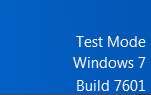
Once this kernel is booted, you will note that the screen comes up with a small note in the lower right corner of the Desktop that Windows 7 is in “Test Mode”, which is to no
te that you’re testing your own kernel. Well great. Thanks.
But the good news can be seen on the Resource Monitor, with 8GB of RAM showing.

That’s it. Testing with real games (eg Battlefield 3) show that over 2.3GByte can be allocated to one application. Game on!
 Gone Bush